The Alerts Report provides a complete overview of all alerts generated by your devices - including temperature, contact, and environmental alerts. It also shows the corrective actions taken and who resolved each issue, helping you monitor device health, maintain compliance, and ensure smooth day-to-day operations.
Accessing the Alerts Report
Go to the Reports tab in your Telsen dashboard.
Click View Alerts Report.
You’ll be redirected to the Alerts Report view, where you can explore all alerts logged across your connected devices.
Understanding the Report Table
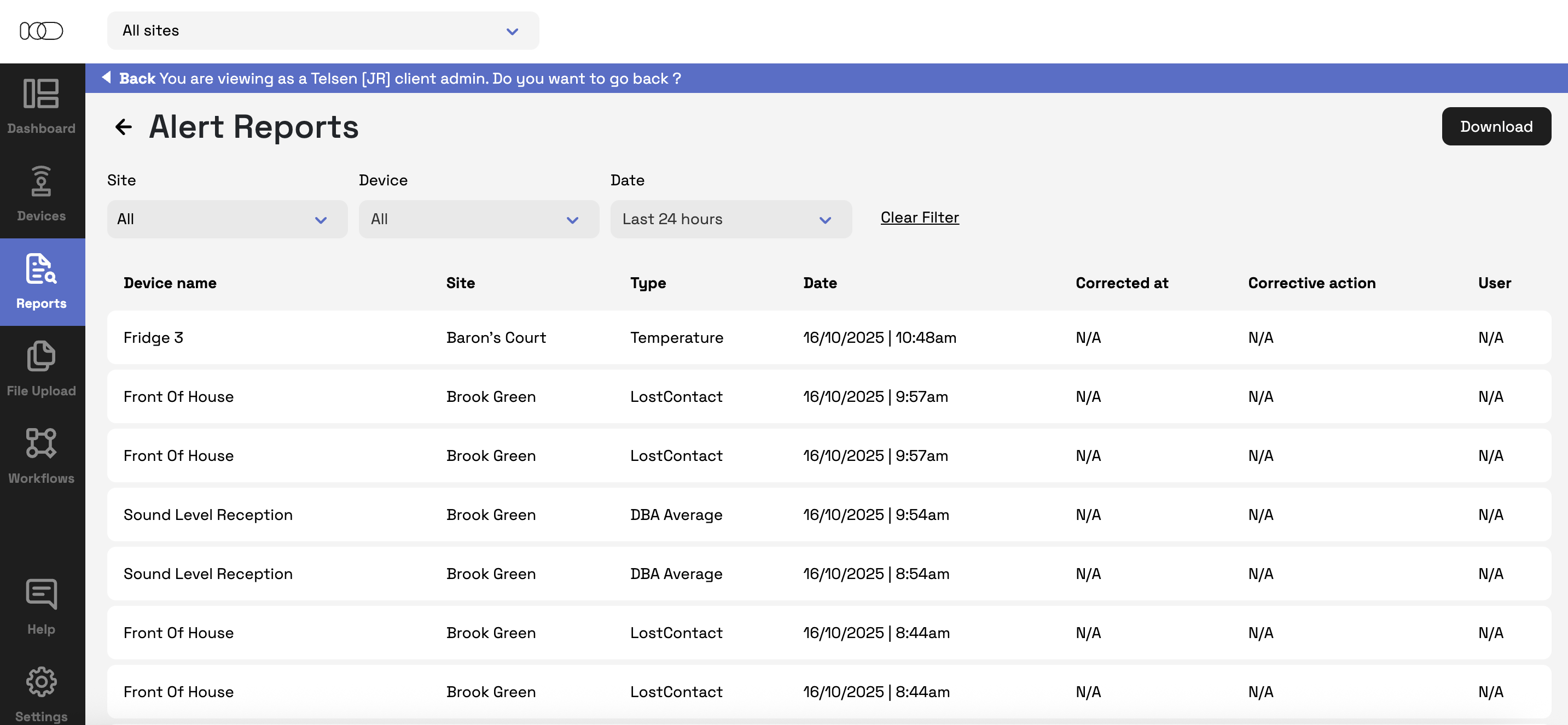
Each row in the Alerts Report represents a specific alert generated by a device. The table includes the following columns:
Device Name – The name of the device where the alert was triggered.
Site – The site where the device is located.
Type – The type of alert generated (e.g. Temperature, Lost Contact, CO₂, Air Pressure).
Date – The date and time the alert occurred (e.g. 09/10/2025 | 03:45 PM).
Corrected At – The date and time when the alert was resolved.
Corrective Action – The corrective action performed to address the alert (configured by admins).
User – The user responsible for carrying out the corrective action.
Tip: Reviewing alerts regularly helps identify recurring issues or devices that may need maintenance.
Using Filters
You can refine your results using filters to focus on specific sites, devices, or time periods.
Site Filter
Use the dropdown to select one or multiple sites.
When a site is selected, the device dropdown automatically updates to show devices from that site.
Default selection: All sites.
Device Filter
Select a specific device to view only alerts from that device.
Only one device can be selected at a time.
Default selection: All devices.
Date Filter
Choose the time range for which you want to view alert data:
Last 24 hours (default)
Last 7 days
Last 30 days
Custom range – Opens a calendar where you can pick start and end dates, then click Save to apply or Cancel to close.
Clear Filters
Click Clear Filters to reset all filters to their default settings.
Downloading the Report
You can download the Alerts Report to keep records or share with your compliance team.
Available formats: PDF, CSV
The Download button will be disabled if no data is available.
Click Download and select your preferred format to export the data.
Why Use This Report
The Alerts Report helps you:
Monitor all device alerts in one place.
Track how and when alerts were resolved.
Identify recurring issues or high-risk devices.
Maintain clear records for audits and compliance reviews.
Was this article helpful?
That’s Great!
Thank you for your feedback
Sorry! We couldn't be helpful
Thank you for your feedback
Feedback sent
We appreciate your effort and will try to fix the article