When an Environmental Health Officer (EHO) or other compliance auditor visits your site, it’s important to present accurate and organised records. Telsen makes it simple to access and share the exact data the inspector needs without overwhelming them with unnecessary details.
How to Access Reports
- Log into your Telsen dashboard.
- Navigate to the Reports section.
- Select the relevant report type: Devices, Workflows, Alerts, or Corrective Actions.
- Filter data to show exceptions or focus on specific timeframes or appliances.
- If required, export the report as a PDF or CSV for sharing.
Report Breakdown
a) Devices Report
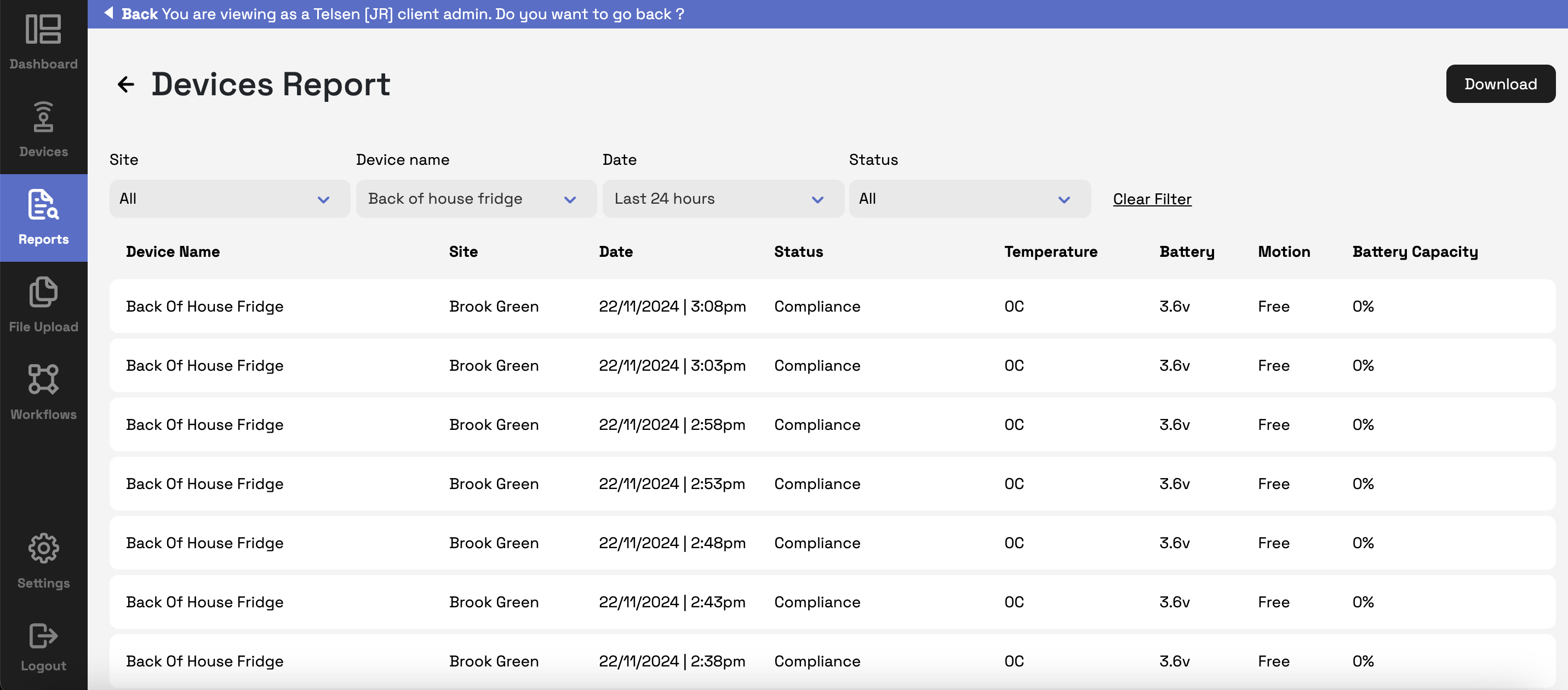
This is particularly useful if the audit is focused on seeing all the readings from a specific sensor.
- Go to Reports > Devices to view detailed logs for each appliance or sensor.
- You can select a date range using the Date dropdown.
- Highlight exceptions by filtering data for only instances where readings triggered alerts (were outside of acceptable ranges) e.g. temperatures above 5°C for more than 30 minutes.
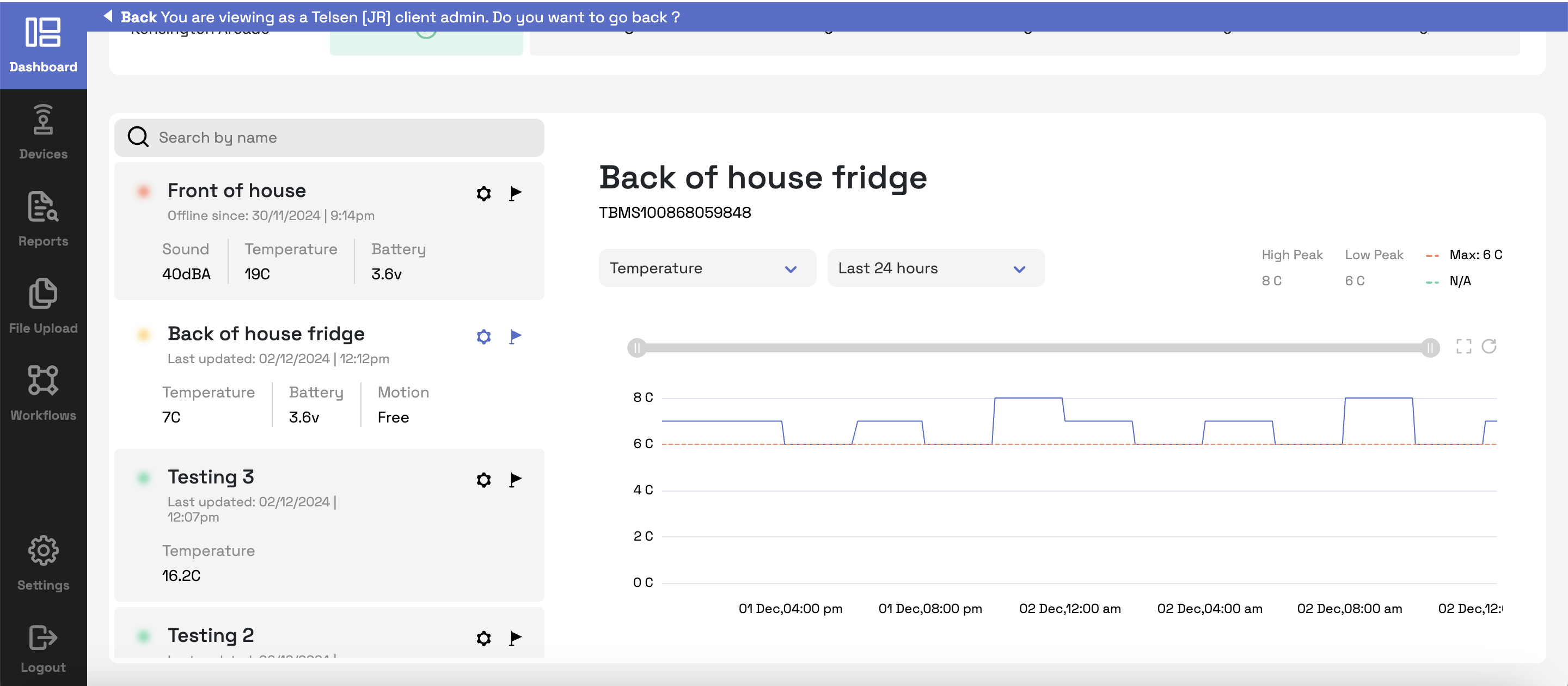
- Use the Graph View on the Dashboard tab to show trends over time, particularly for any deviations above compliance thresholds.
b) Alerts Reports
Demonstrate how your site responds to alerts for all devices using Telsen:
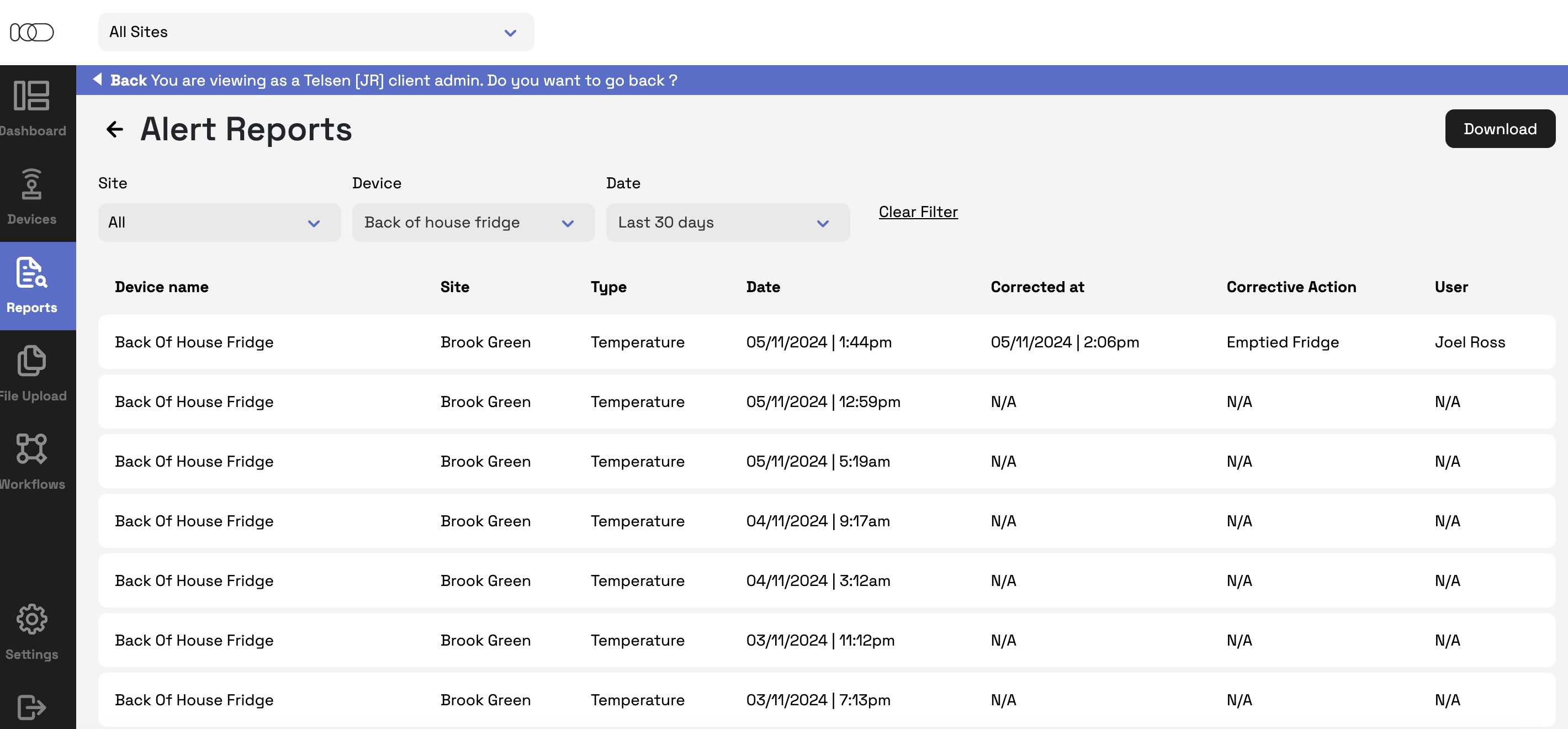
- Access these under Reports > Alerts
- Show instances where an alert has been sent for temperatures, humidity, or any other readings has fallen outside set alert thresholds.
- You can select a date range using the Date dropdown.
- These reports are helpful if asked by the inspector which corrective action was taken in response to an alert (e.g informing management, discarding non-compliant food items).
- Telsen timestamps all alerts, responses, and corrective actions, making it easy to demonstrate accountability and traceability.
- If required, download the reports as a CSV or PDF file.
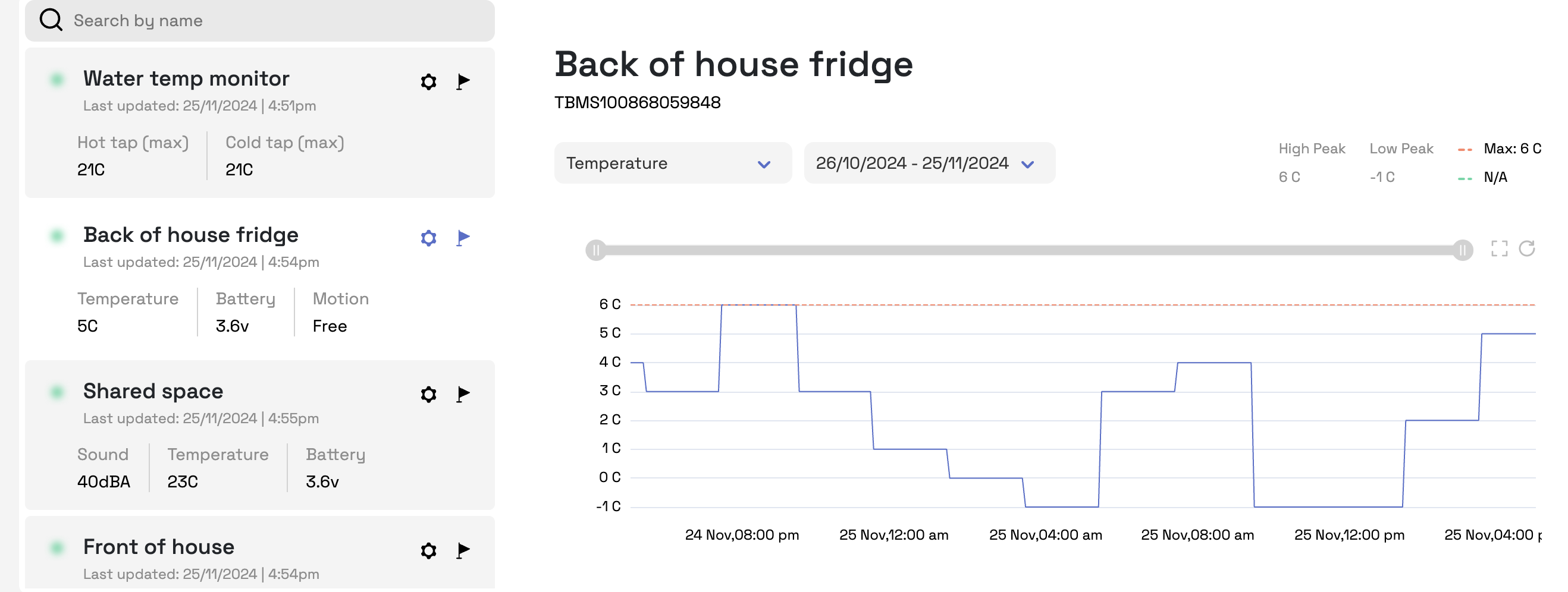
- If specific alerts are to be shown, for a specific time, you can also show the inspector the graph for that device (see dashboard).
c) Site Report
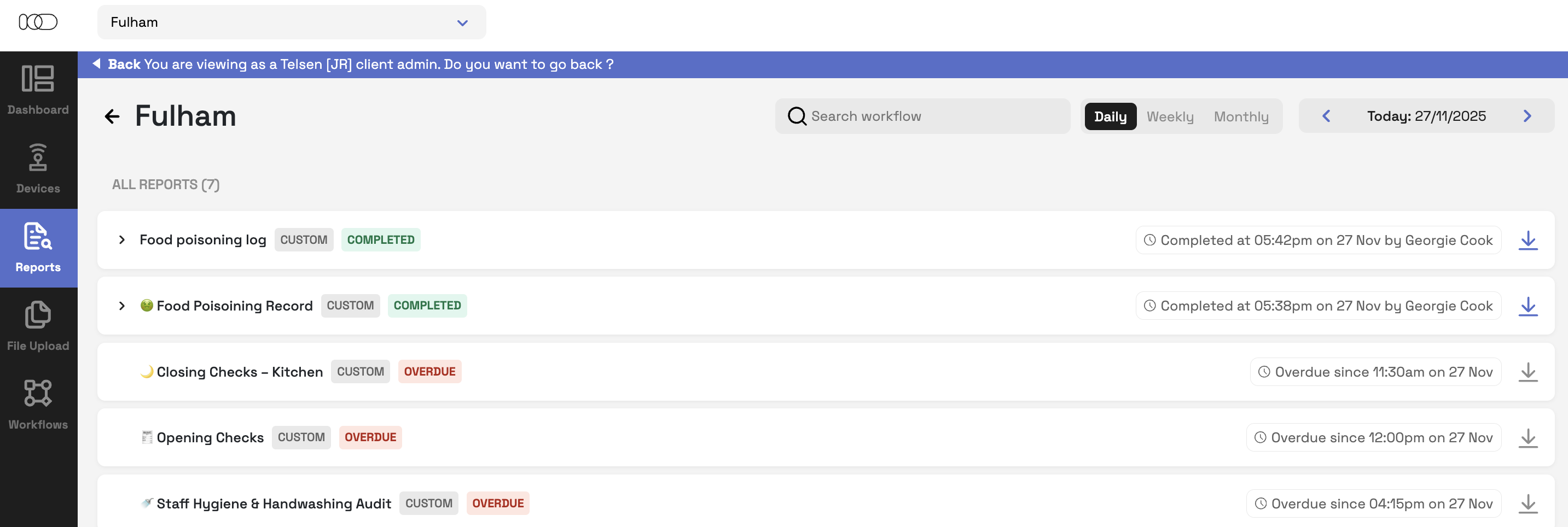
The Site Report provides a complete overview of all activity at a specific site, allowing you to show inspectors or managers a full history of compliance. This includes HACCP checks, custom workflows, corrective actions, temperature alerts, sensor performance, and any outstanding issues.
Navigate to Reports > Site Report, select your site, and use the filters to view data for a specific date range or workflow type.
You can expand individual records to view the full workflow output, logged actions, temperatures, and time-stamped entries, providing clear evidence that your team is completing all required checks.
d) HACCP Workflow Report
This report demonstrates to the inspector that your site is performing all required HACCP food checks to maintain compliance.
- Access this under Reports > HACCP Workflows and filter by date or checklist type
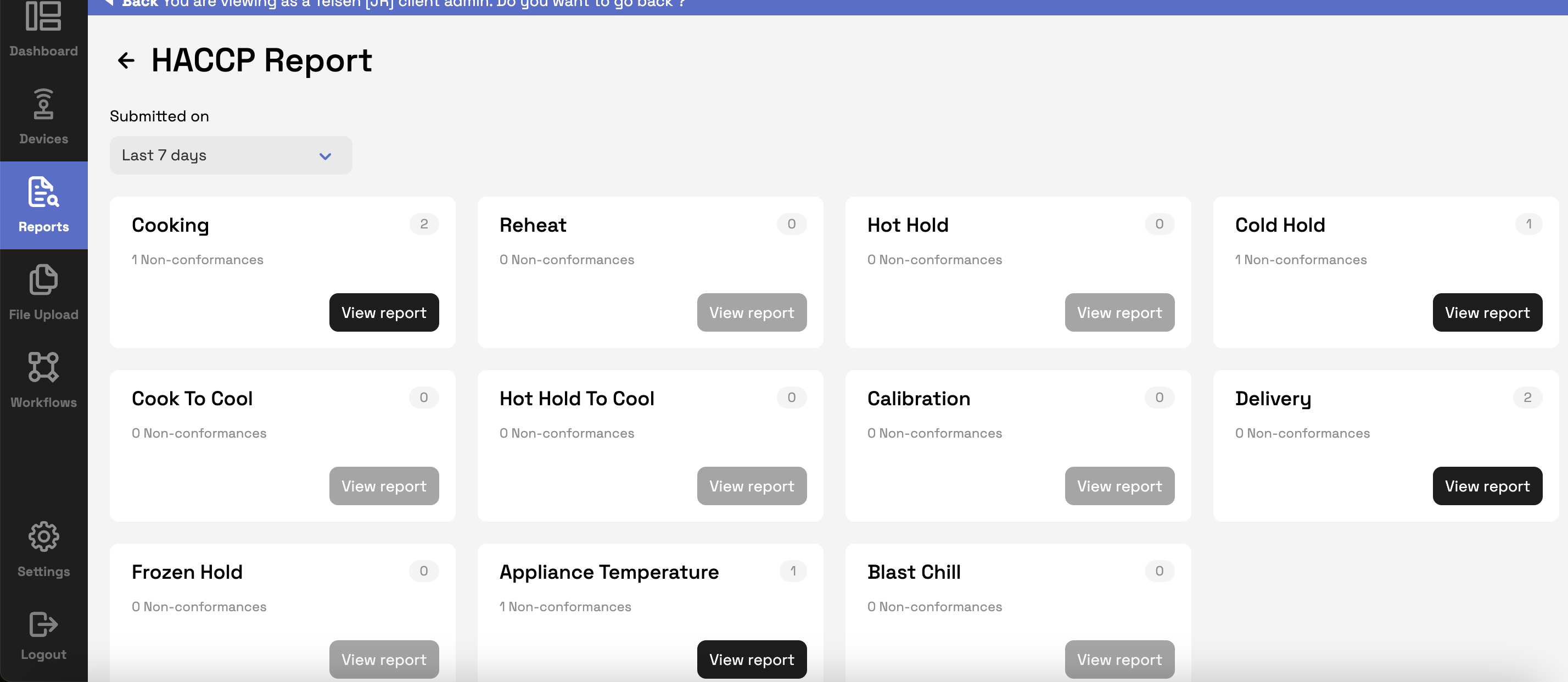
- Here, you can view the number of 'non-conformances' and the total number of completed HACCP checks for the selected date range.
- If the auditor requests data for a specific date range, use the Submitted on filter to choose your desired range.
- Click View Report to provide the inspector with detailed information about the corrective actions taken
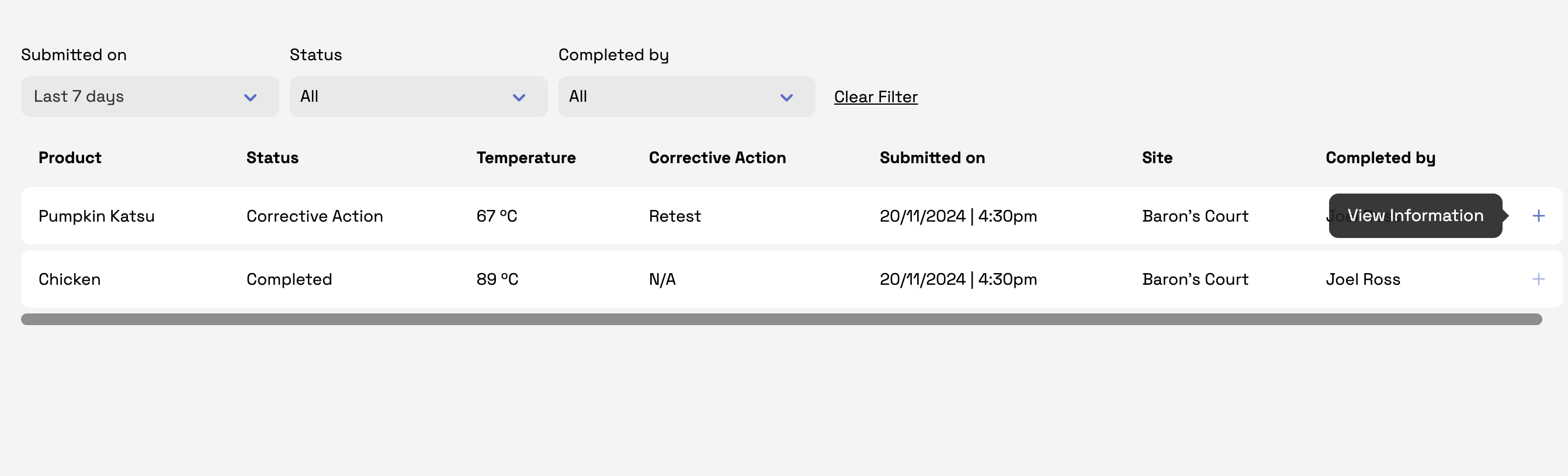
- Use this report to identify who conducted the check and, in cases of failure, what corrective actions were taken.
- Click the + icon to show any comments or additional information that was added recorded when this check was performed.
e) Transmission Gap Report
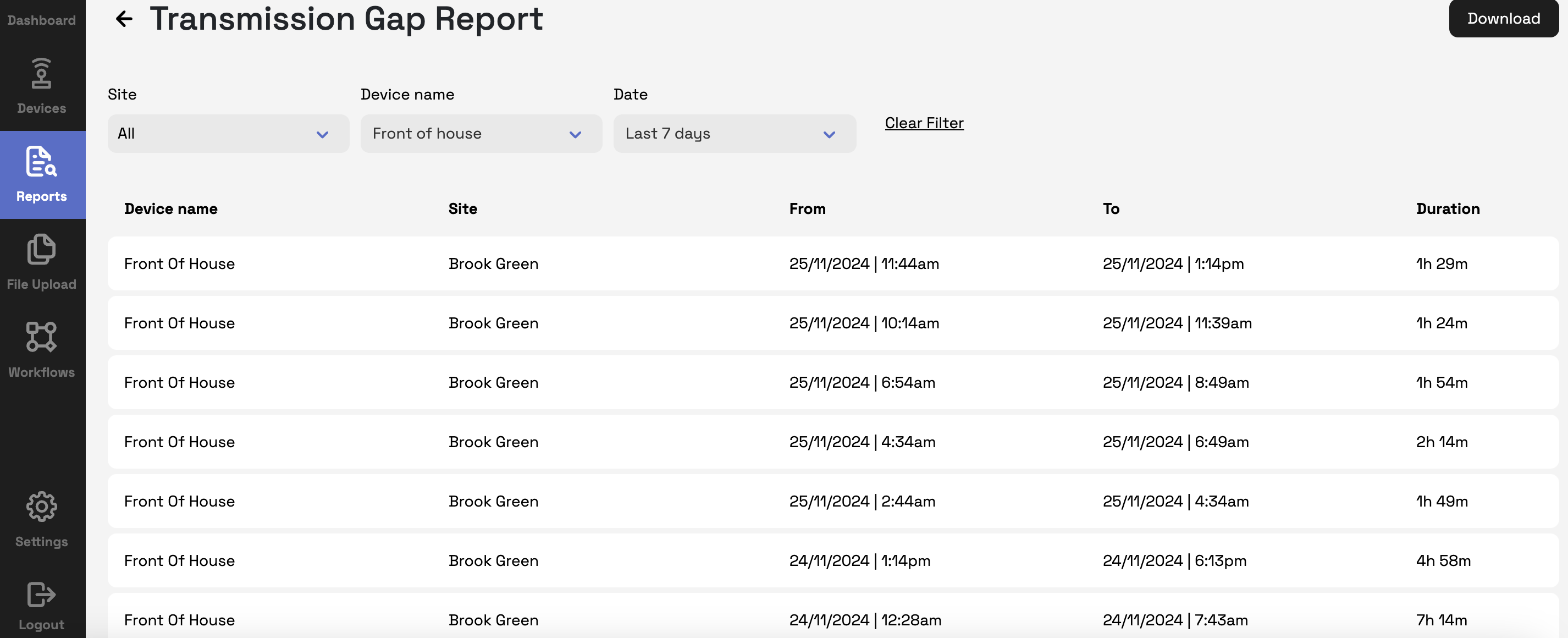
If you use Telsen sensors or gateways, this data can be particularly helpful to show the EHO if they ask about the sensors disconnecting or internet going down.
- Access this under Reports > Transmission Gap Report
- If there is ever an issue where the internet has been down, you can use this to prove how long for the device was down for.
Was this article helpful?
That’s Great!
Thank you for your feedback
Sorry! We couldn't be helpful
Thank you for your feedback
Feedback sent
We appreciate your effort and will try to fix the article