The Dashboard is the landing page for all users after logging into Telsen. It provides a centralised overview of your site’s compliance, performance, and operational activity.
You can view data for a single site or all sites by using the Global Site Filter at the top of the Dashboard. By default, this is set to “All Sites.”
Site Scores Widget
The Site Scores Widget gives you a quick overview of how your sites are performing (daily or weekly) based on workflow completion and device alerts status.
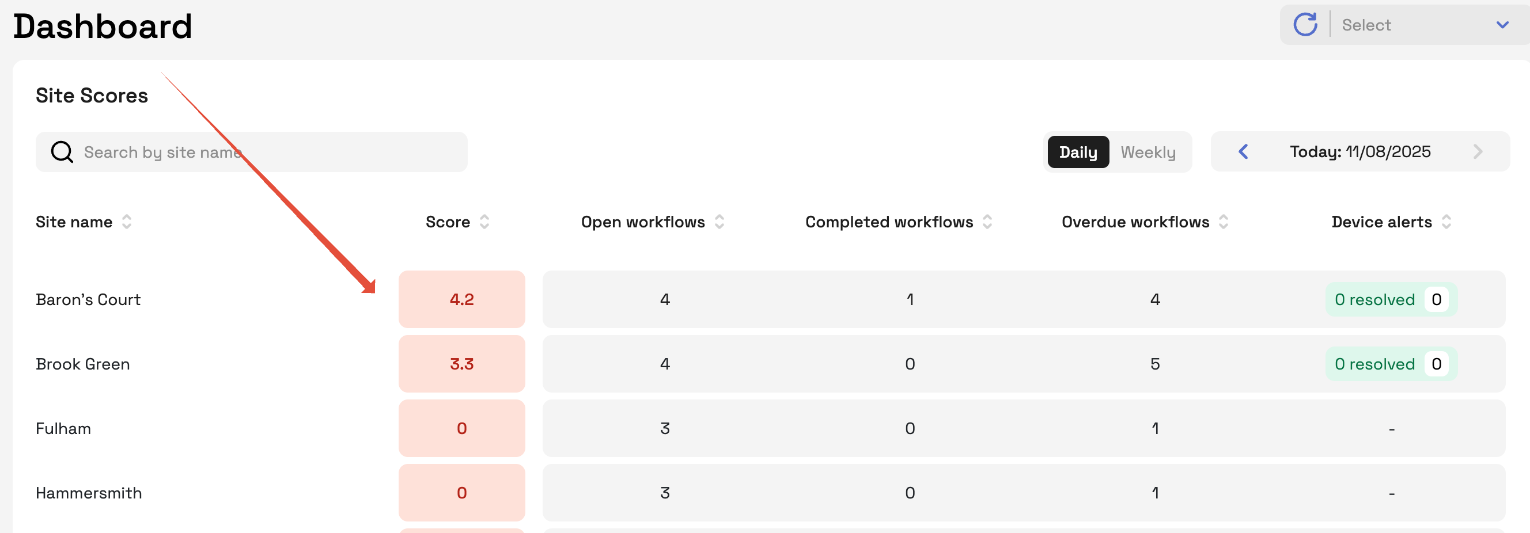
What do the colours mean?
Green (healthy)
Amber (minor issues)
Red (critical issues)
Grey (no data)
Daily and Weekly View
Date Picker: Select any previous day using the calendar or arrows (no future dates)
Daily / Weekly: Chose between a daily or weekly view of data
Daily View Shows performance metrics for each site on a specific day
Weekly View Lets you monitor trends and spot issues across a full week
Who can use it:
Company Admins: See all company sites
Site Admins/Viewers: See assigned sites only
Note: Future dates or closed sites show as greyed-out “–”
- View “How are scores calculated?” to open the full scoring logic.
Data Refresh & Auto-Refresh
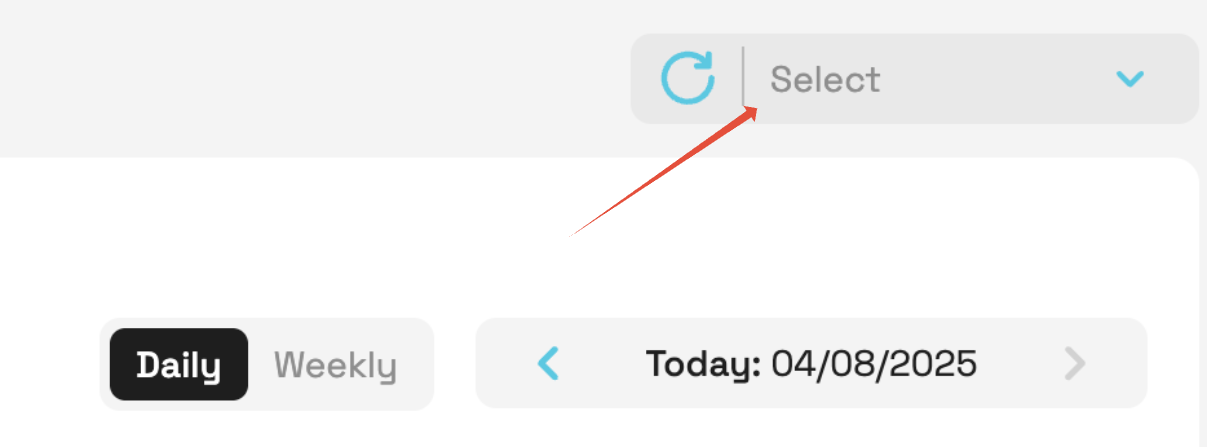
Where it is: Top-right of the Dashboard
Click the “Refresh Data” button to manually reload all dashboard data.
Use the auto-refresh toggle to enable automatic updates.
When enabled, all widgets will refresh at the selected interval.
Why We Introduced Scoring
Previously, Telsen dashboards only showed a ✔︎ / ✖︎ pass-fail icon per site.
Why we improved it:
Our customers told us this was too simplistic - they wanted a better way to track gradual improvements, borderline performance, and easily view missed tasks over time.
With the new scoring system, teams can:
Identify underperforming sites more accurately
Track improvement over days or weeks
Prioritise follow-up and support based on quantifiable metrics
Was this article helpful?
That’s Great!
Thank you for your feedback
Sorry! We couldn't be helpful
Thank you for your feedback
Feedback sent
We appreciate your effort and will try to fix the article