This guide explains how to use the Alerts system. The new Alerts experience makes it easier to create, manage, and monitor alerts across all your sensors.
1. Manage Alerts Screen
Previously, alerts were configured individually for each sensor. This often meant repeating the same setup multiple times.
You can now configure all your alerts in one place, using the Telsen Desktop app.
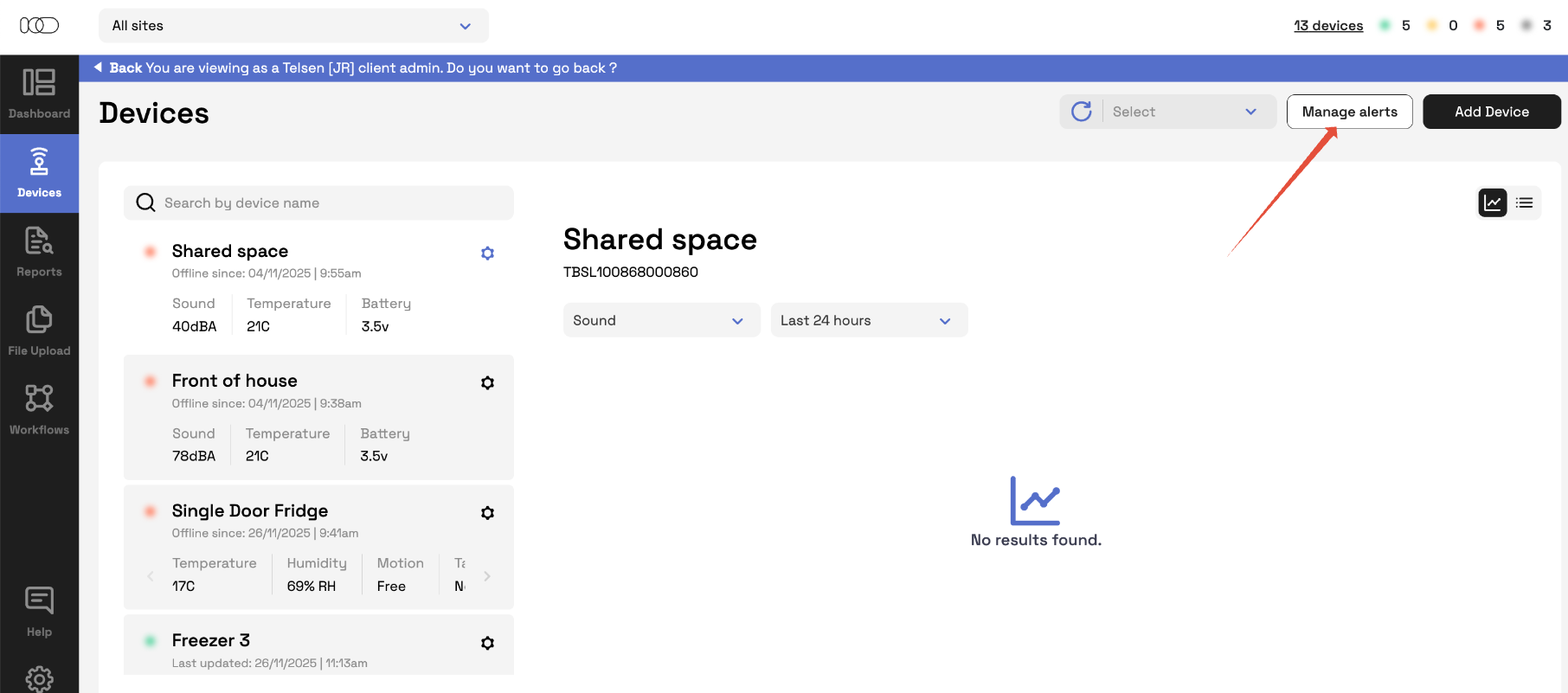
On Desktop Go to Devices
Go to Manage Alerts from your dashboard.
All alert rules, sensors, and user assignments are now centralised here.
2. Creating a New Alert Rule
Alert Rules let you set conditions once and apply them to multiple sensors.
Click 'New Alert'
Name the alert rule (e.g., "Fridge Temperature Alert" or "Freezer Critical Temperature").
Set parameters, including temperature thresholds and time delays.
Add corrective actions specific to this rule (e.g., Inform Management).
Choose when the alert should trigger, using day and time schedules.
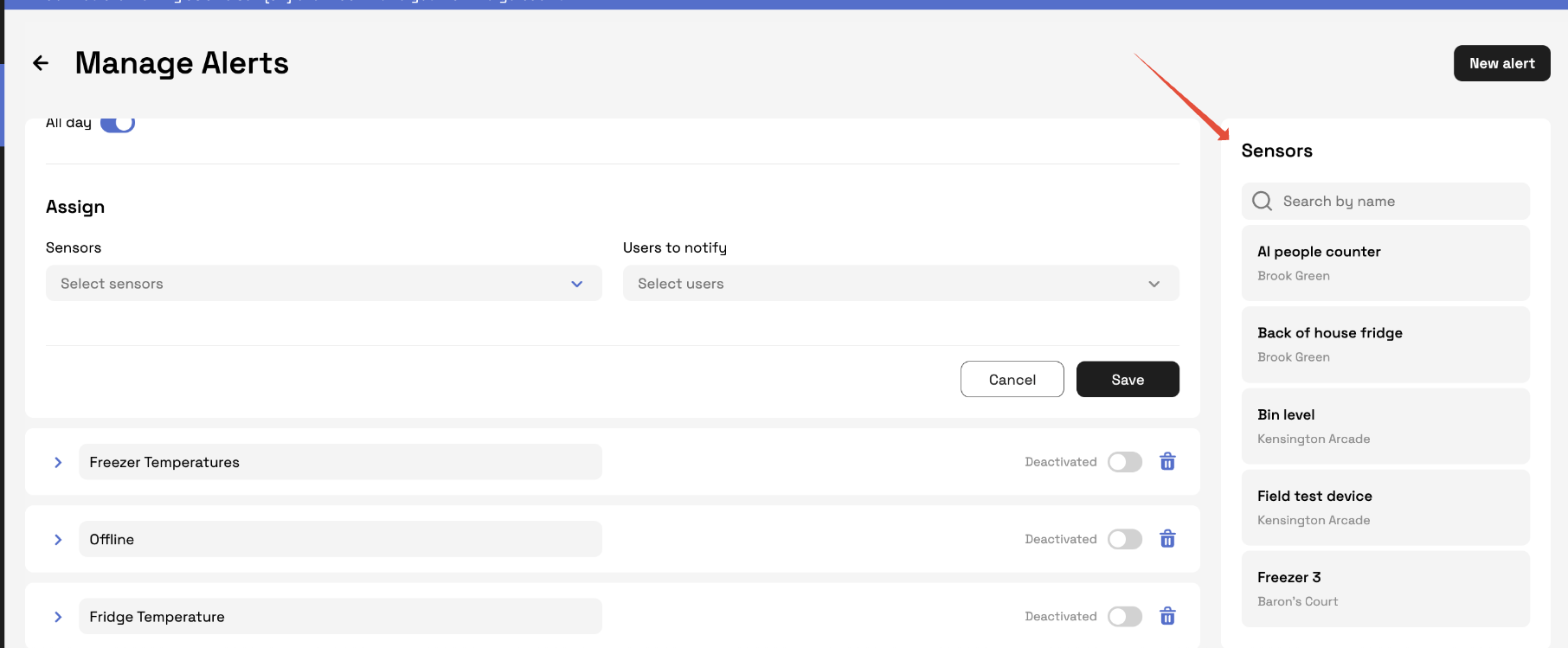
Assign to the sensors and users you want to notify
This allows different types of equipment to have their own tailored actions.
3. Mapping Multiple Sensors to a Rule
You can assign several sensors to one alert rule.
For example:
A rule for Baron’s Court may include three temperature sensors.
A different rule for Brook Green can include only dedicated sensors for that site.
This removes the need to configure alerts individually for every sensor.
4. Assigning Users to Alerts
Each alert rule can notify different users depending on the site.
For example:
If any sensors at Baron’s Court trigger an alert, you may choose to notify Georgie and David.
For Brook Green, the alerts might only notify Joel.
These assignments are saved to the alert rule and apply automatically.
5. How Alerts Behave (Amber → Red → Resolved)
Alerts now follow a clear status flow:
Amber: The threshold has been breached, and the sensor is in its configured time delay.
Red: The delay has passed and an alert notification has been sent.
Corrective Action Required: Logging a corrective action attaches it to the alert but does not reset the alert.
Back to Green: The alert returns to green only when the temperature returns to a safe range.
24-Hour Grace Period
After the sensor returns to a safe state, you have 24 hours to log corrective actions for tidy record-keeping.
6. Sensor Mapping Overview
On the right-hand side of the Alerts screen, you’ll find a sensor mapping widget:
It shows every sensor at your site or company.
You can see how many alert rules each sensor is mapped to.
This helps identify sensors that aren't assigned to any alerts.
You can apply a site filter to focus on sensors for a specific location.
This makes it easier to ensure all sensors are properly covered.
You're All Set
With these updates, managing alerts is more flexible, efficient, and easier to understand. If you need help configuring your alert rules or want guidance on best practices, please reach out to the support team.
Was this article helpful?
That’s Great!
Thank you for your feedback
Sorry! We couldn't be helpful
Thank you for your feedback
Feedback sent
We appreciate your effort and will try to fix the article