Your sensor should already be switched on when it arrives. If not, don’t worry - this guide will show you how to turn it on as a backup.
Option 1: Use the Milesight Toolbox app
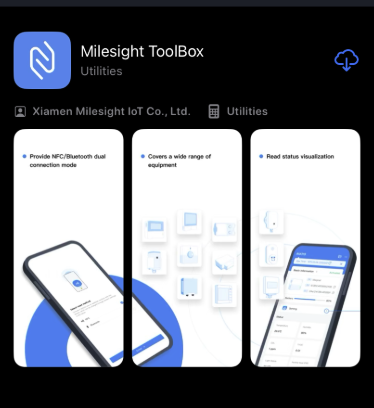
- Download the Milesight Toolbox app (iOS or Android).
- Open the app and use your phone’s NFC to scan the sensor.
- This will switch the sensor on.
- See detailed guide below
Tip - hold your phone perpendicular to the sensor and keep it still while scanning to ensure the NFC connection works properly.
1) Tap NFC Read to start the scanner
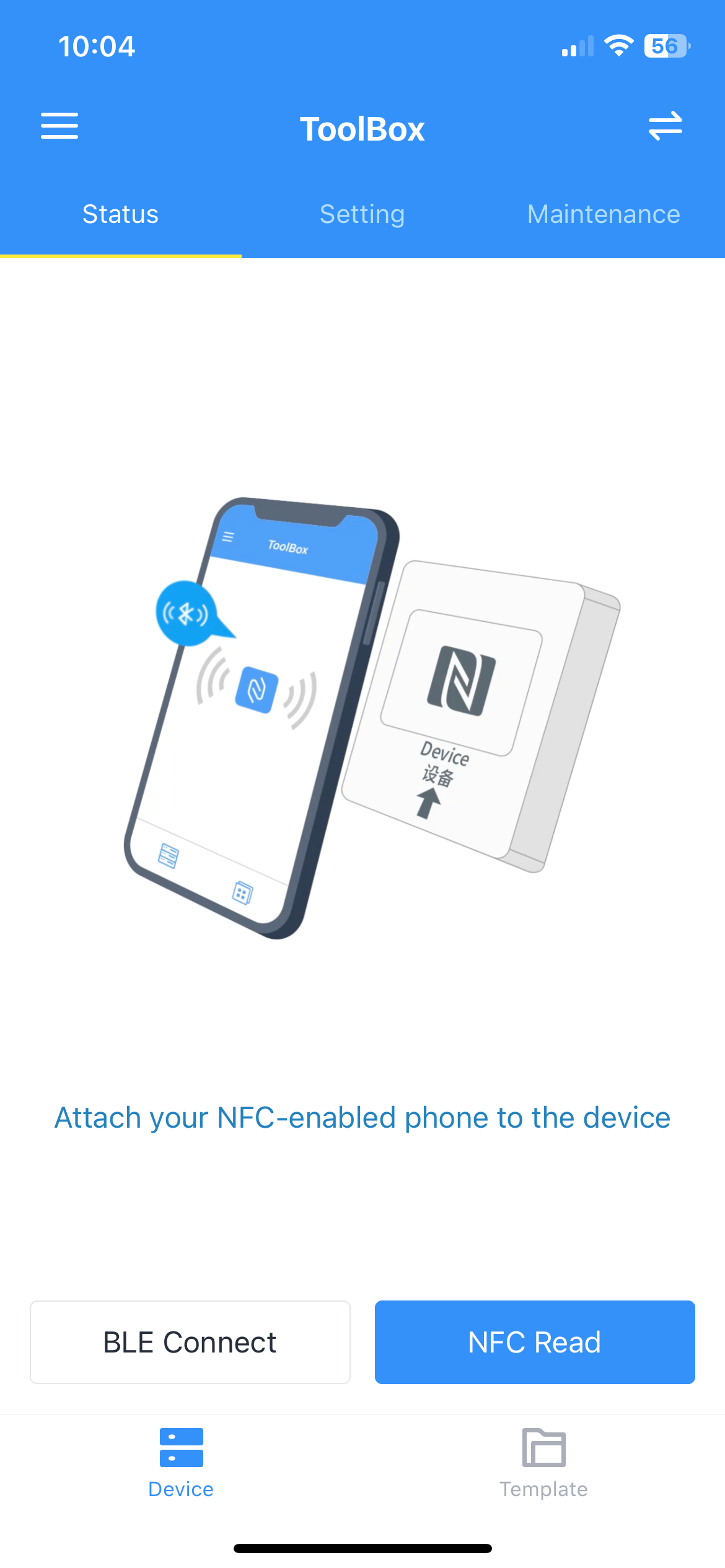
2) Hold your phone to the NFC logo on the device
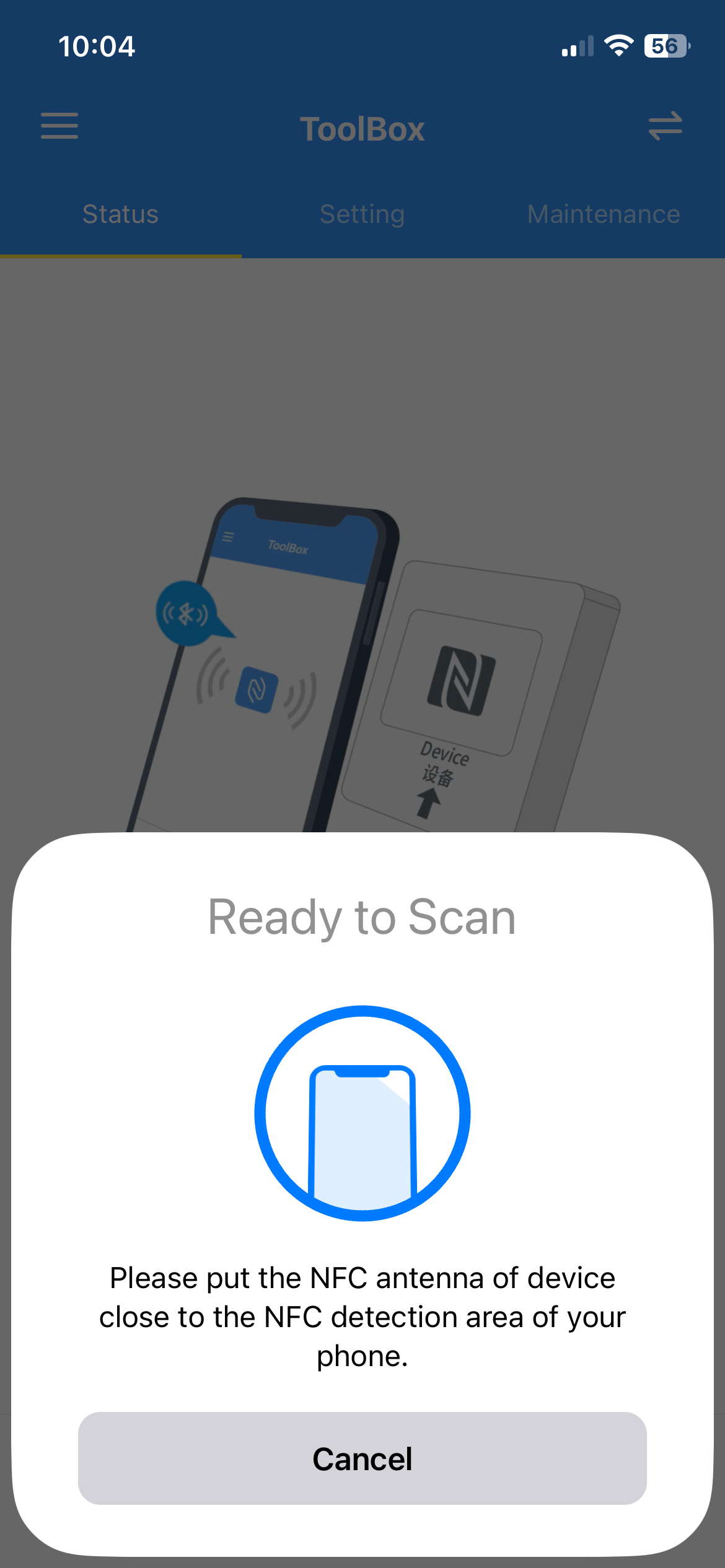
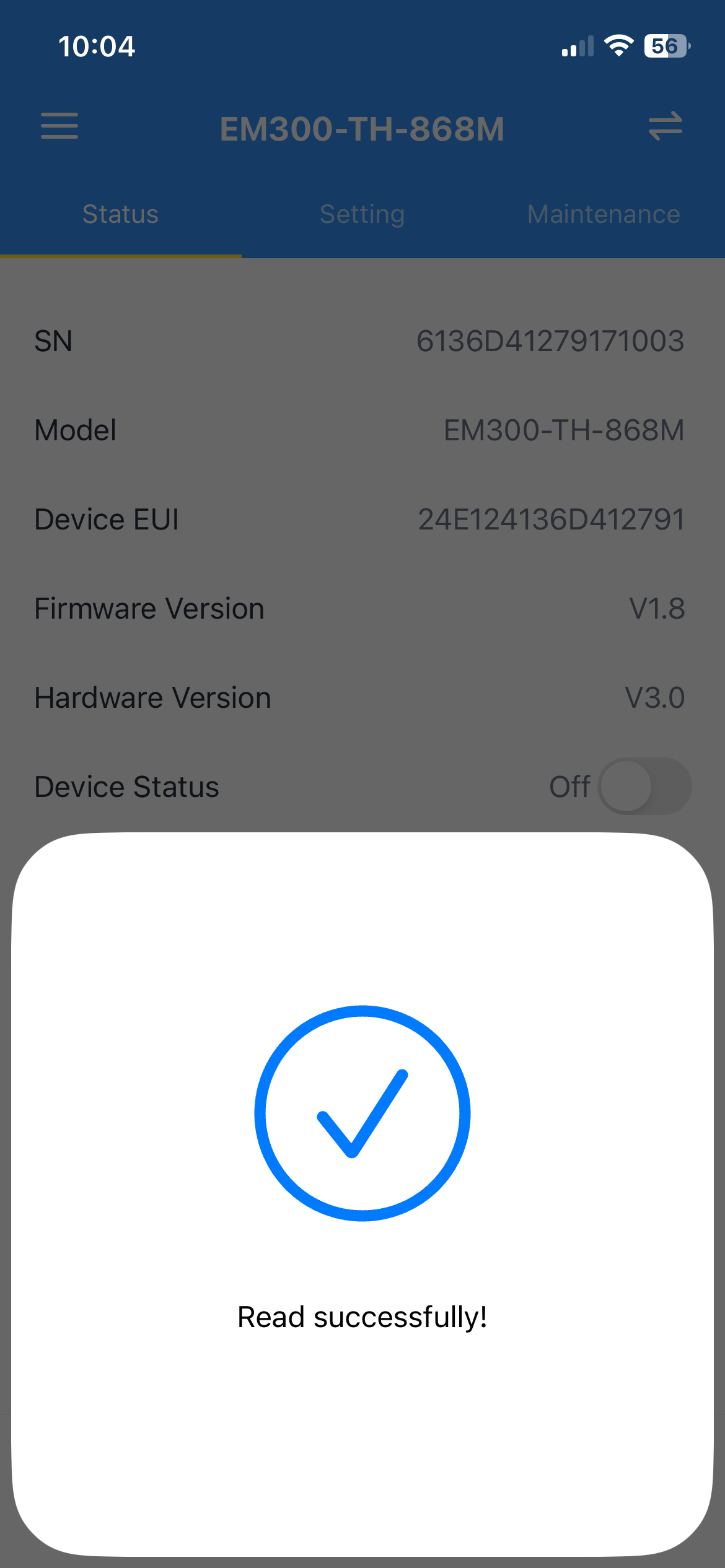
3) Once done, you can now access the device settings on your app
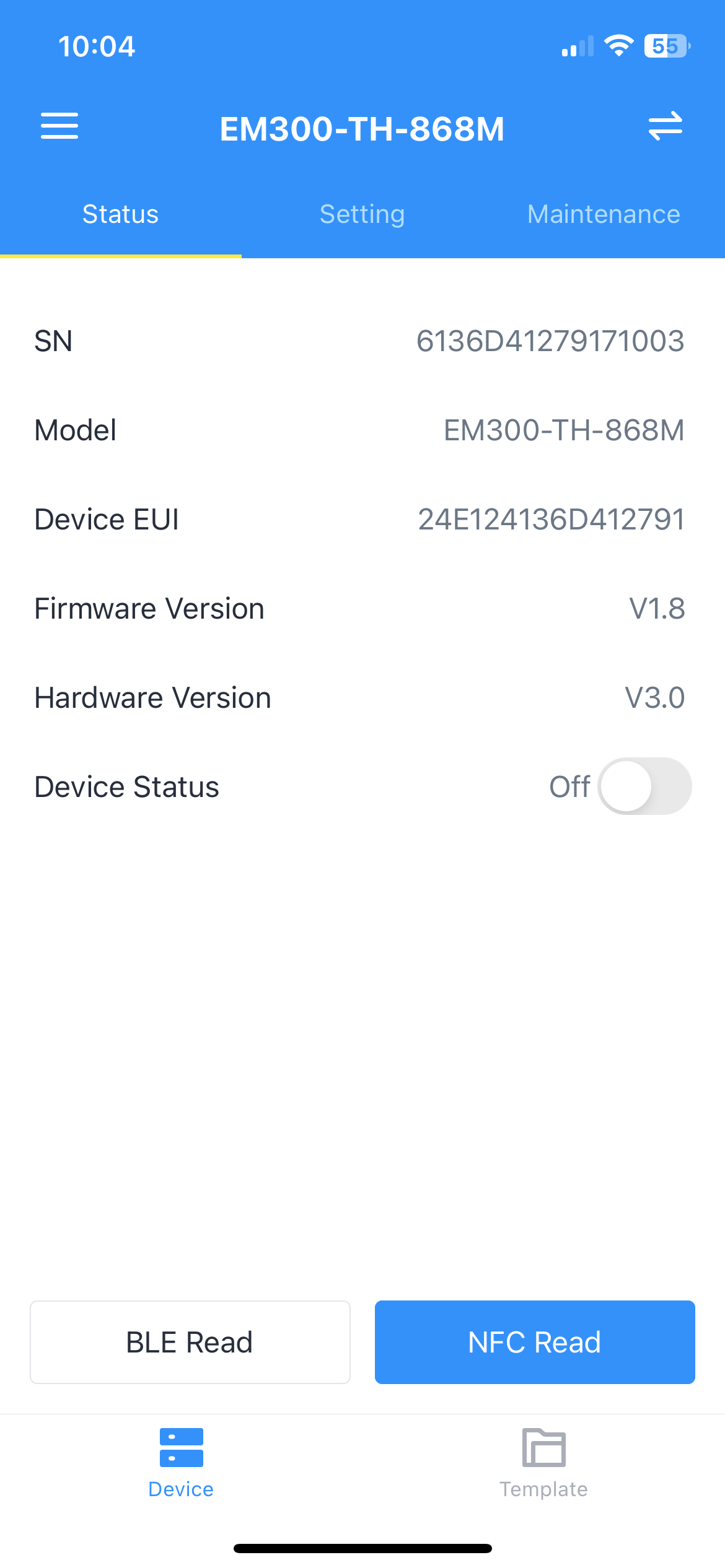
4) Set the Device Status to 'On' to turn the sensor on
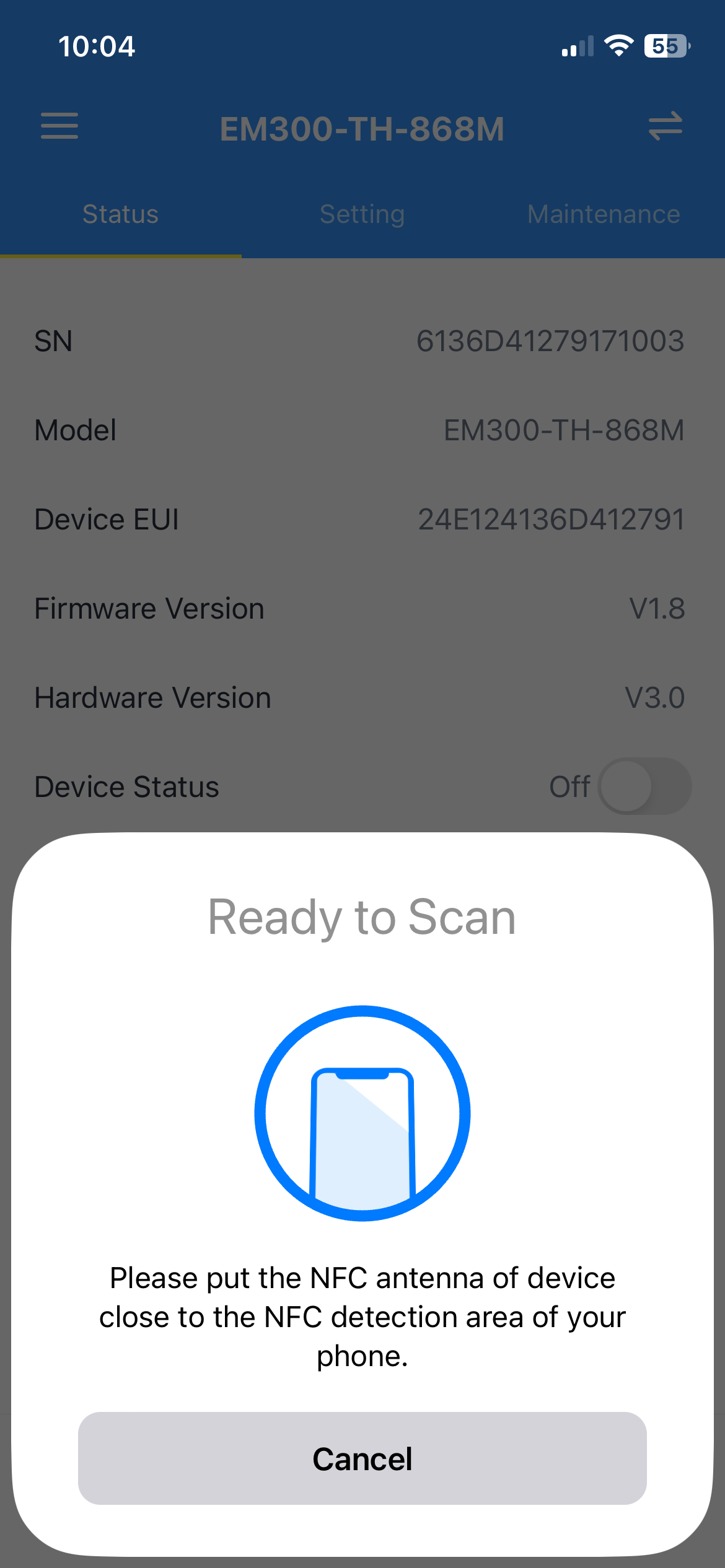
5) When done, you'll see a success message. If the NFC read / write fails just try again.
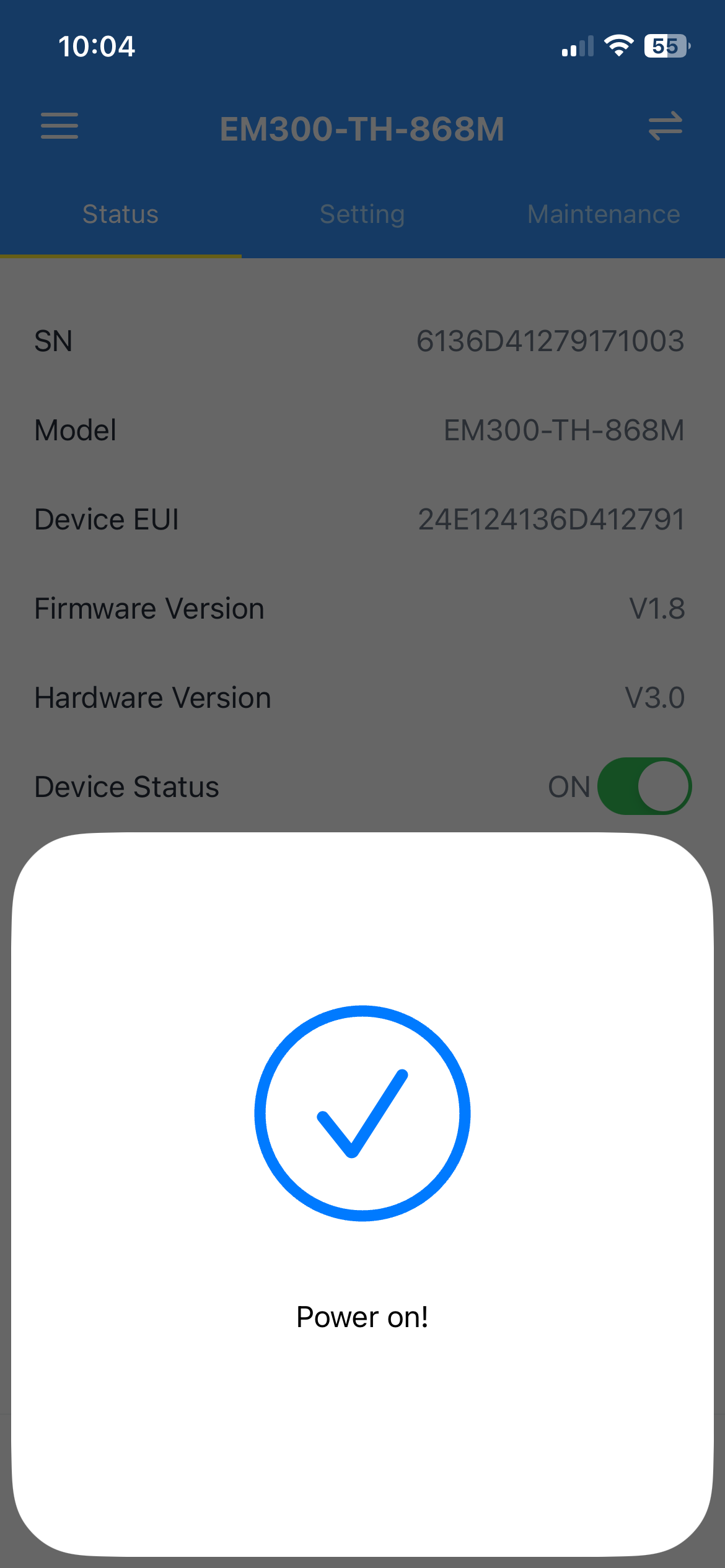
- This has now successfully been switched on.
- You can verify your sensor is online by checking the devices tab on the desktop. It should appear green and online.
Option 2: Turn on the sensor manually
Alternatively if this does not work, you can unscrew the back of the sensor
Hold the power button until the green light appears
To check this has come on press the button once and a green light should flash once
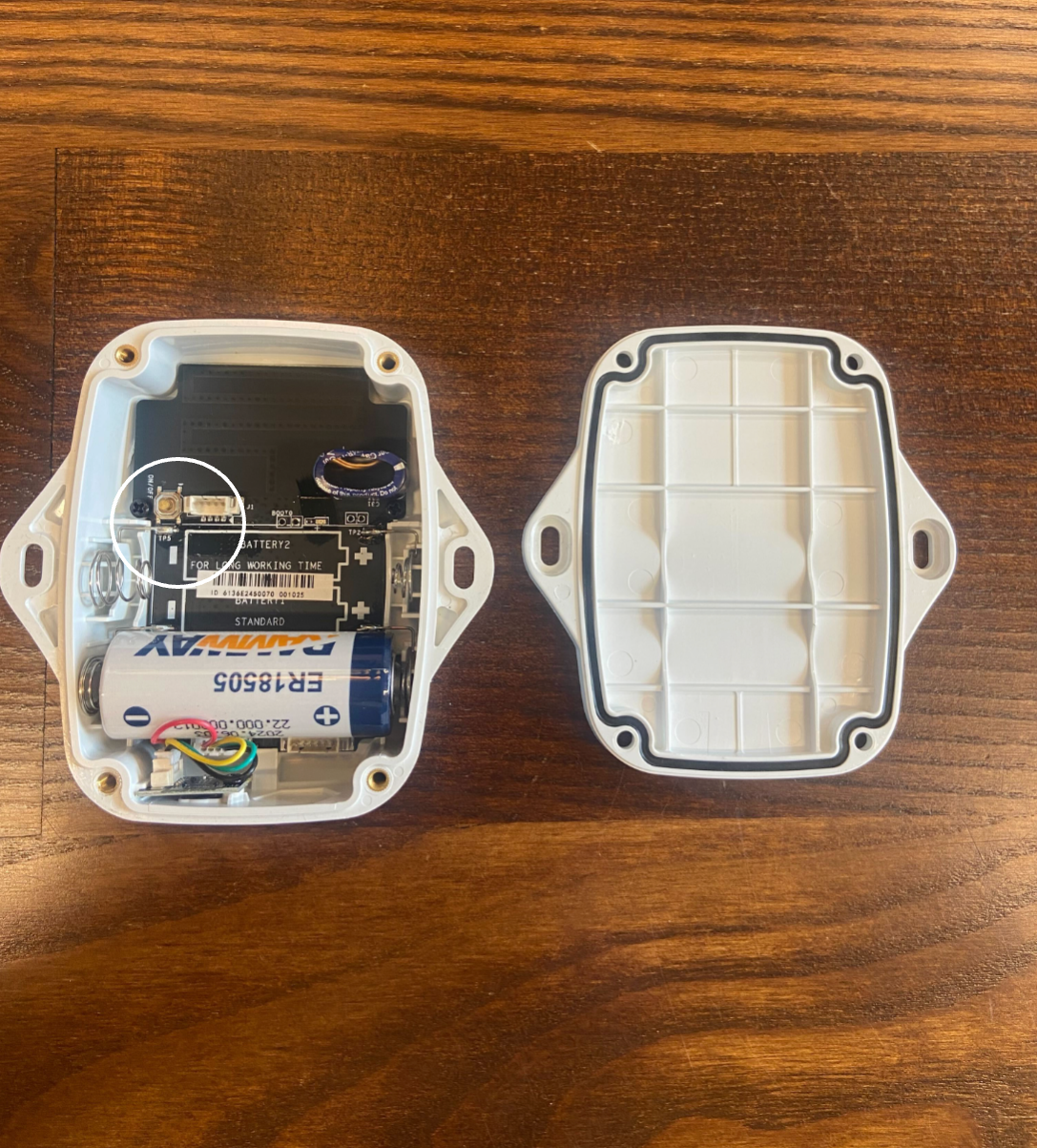
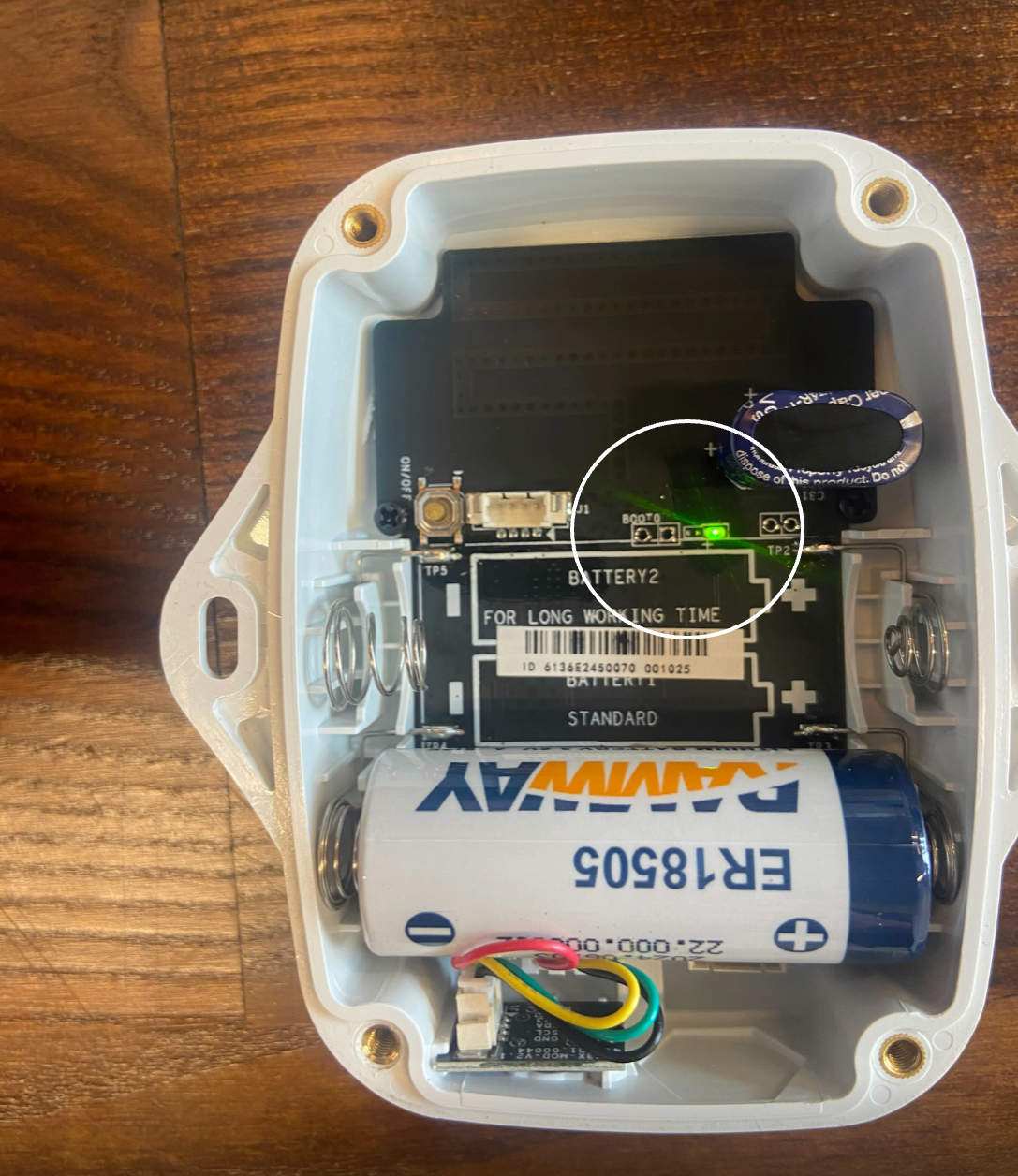
✅ This is now successfully switched on. Remember to screw the lid back on!
Was this article helpful?
That’s Great!
Thank you for your feedback
Sorry! We couldn't be helpful
Thank you for your feedback
Feedback sent
We appreciate your effort and will try to fix the article