Follow the steps below to view temperature data, alerts, and transmission gaps.
Go to Devices
Log in to the Telsen web app
From the left-hand menu, select Devices
You’ll now see a list of all sensors connected to your organisation
Tip:
If you manage multiple sites, ensure to use the Site Filter at the top to switch between locations.
Select Your Sensor
Click on Sensors at the top of the Devices page
Choose the sensor you want to view
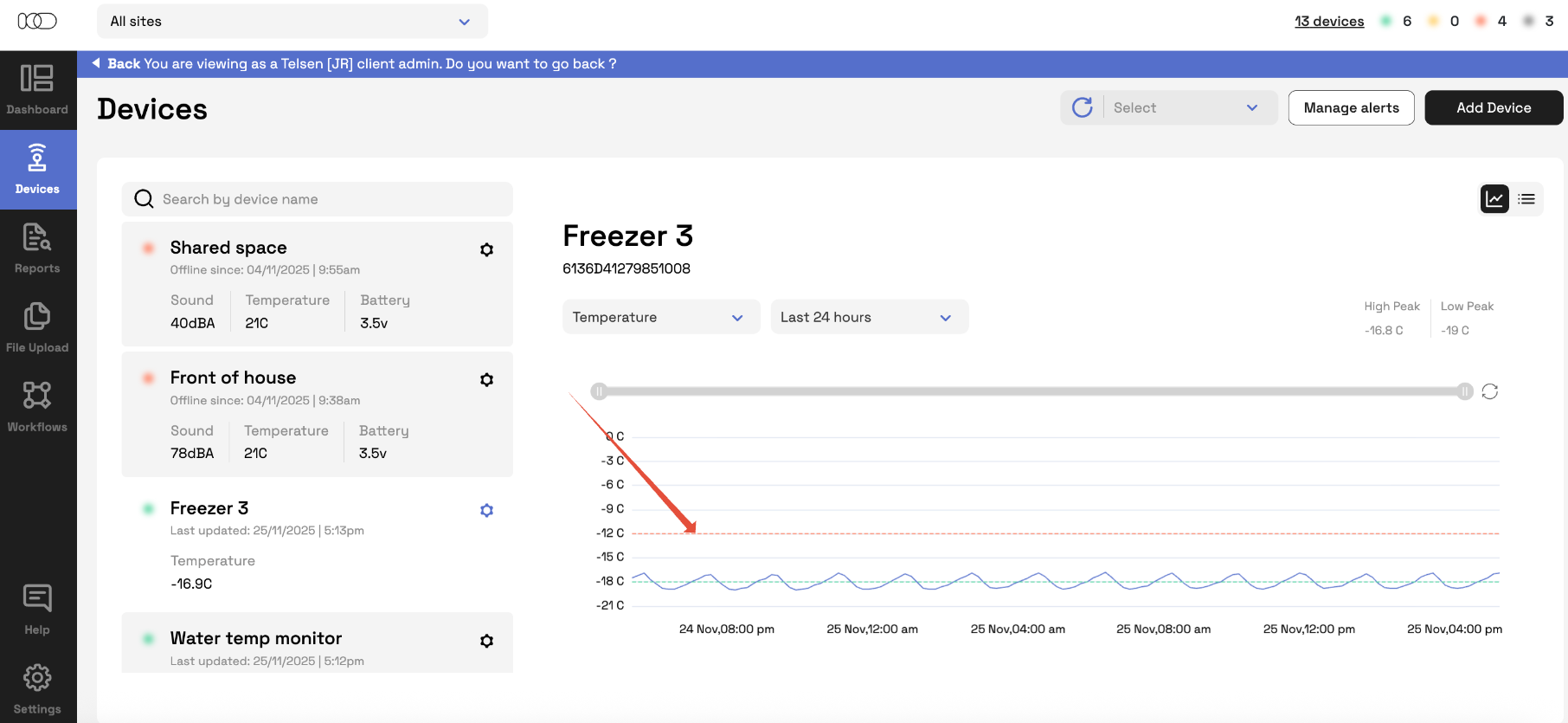
The sensor detail panel will open on the left-hand side
Here you can see:
Last reading received
Whether the sensor is Online or Offline (green or red)
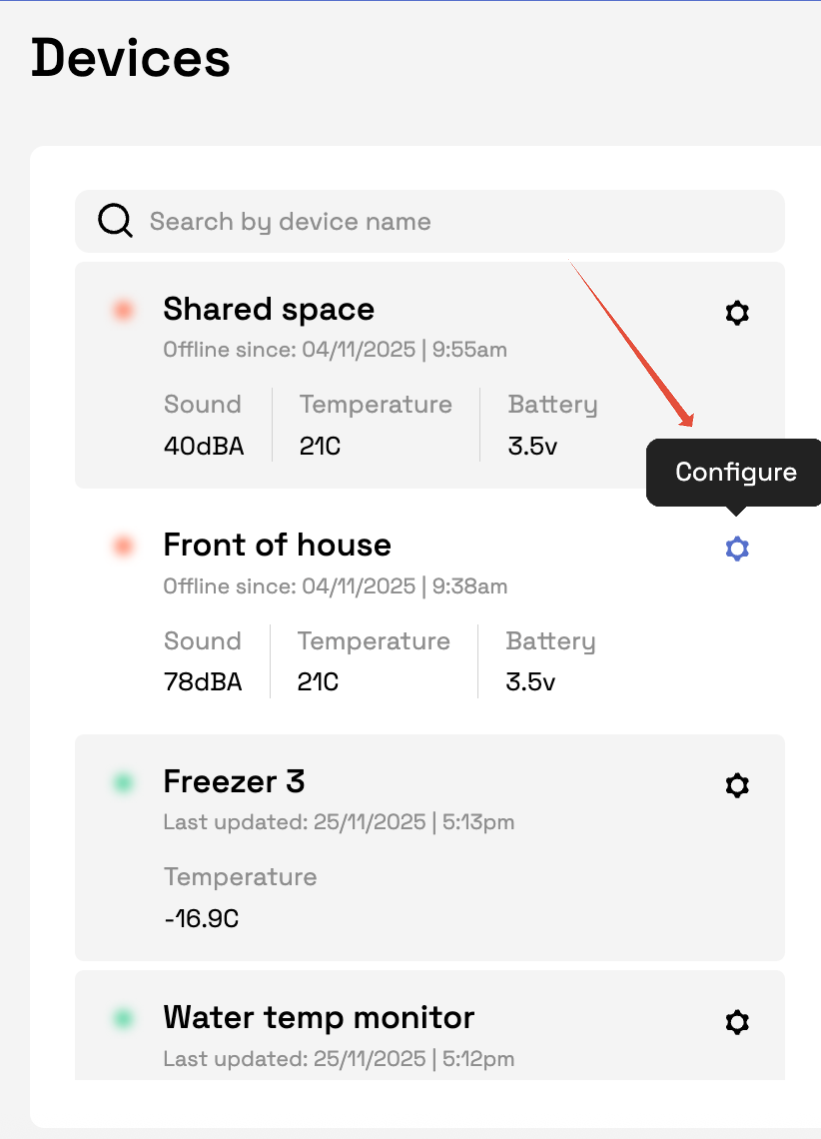
You can also edit the 'Device Name' by selecting Configure on each individual sensor
View Temperature Data
Using the chart on the right:
Use the date picker on the right to select a time range:
Past 24 hours
Past 7 days
Past 30 days
Custom date range
The graph will automatically update to show readings based on the selected timeframe. If there is an alert set you will also see a red and green line, representing this.
View Recent Alerts & Transmission Gaps
Further down the sensor information, you will find:
Recent Alerts
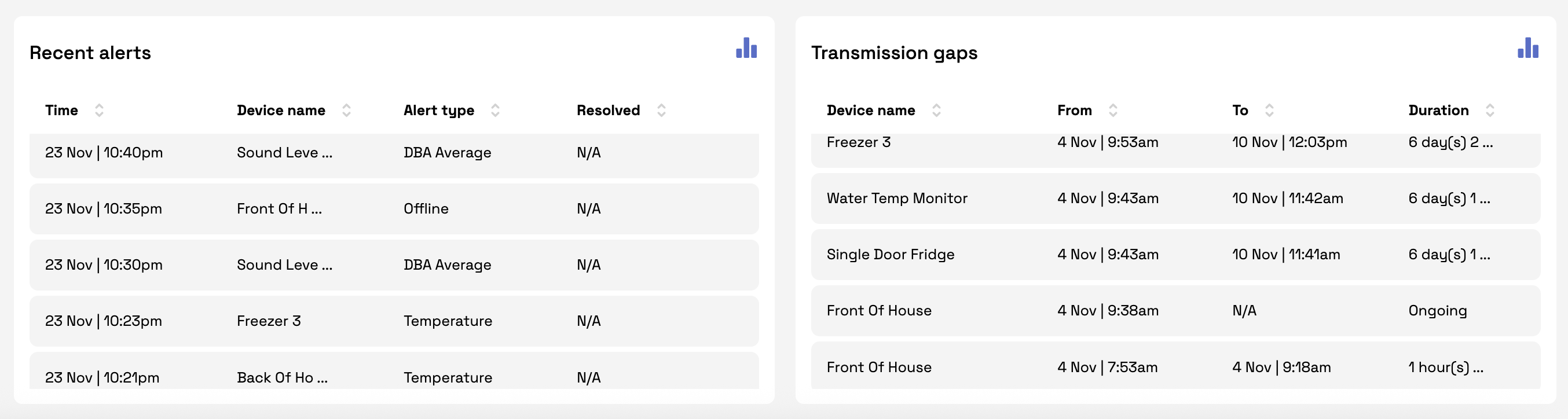
The Recent Alerts panel shows all temperature and offline alerts triggered by your sensors. You can see:
- When the alert started
- Whether it is active, resolved, or expired
- If a corrective action has been logged
- Which sensor and site the alert relates to
Transmission Gaps
This is a log of any periods where the sensor stopped sending data (likely due to a disconnected gateway). You can see:
When the sensor went offline
How long it was offline
Click the bar chart to view the report
This is helpful for diagnosing:
Power issues
Gateway connectivity
Distance/interference issues
Click the bar chart to view the report
Was this article helpful?
That’s Great!
Thank you for your feedback
Sorry! We couldn't be helpful
Thank you for your feedback
Feedback sent
We appreciate your effort and will try to fix the article