Custom workflows are scheduled in advance for the right users, times, and days. If you've been assigned a custom task, here's how to find and complete it using the Telsen mobile app.
1. Open the Telsen App
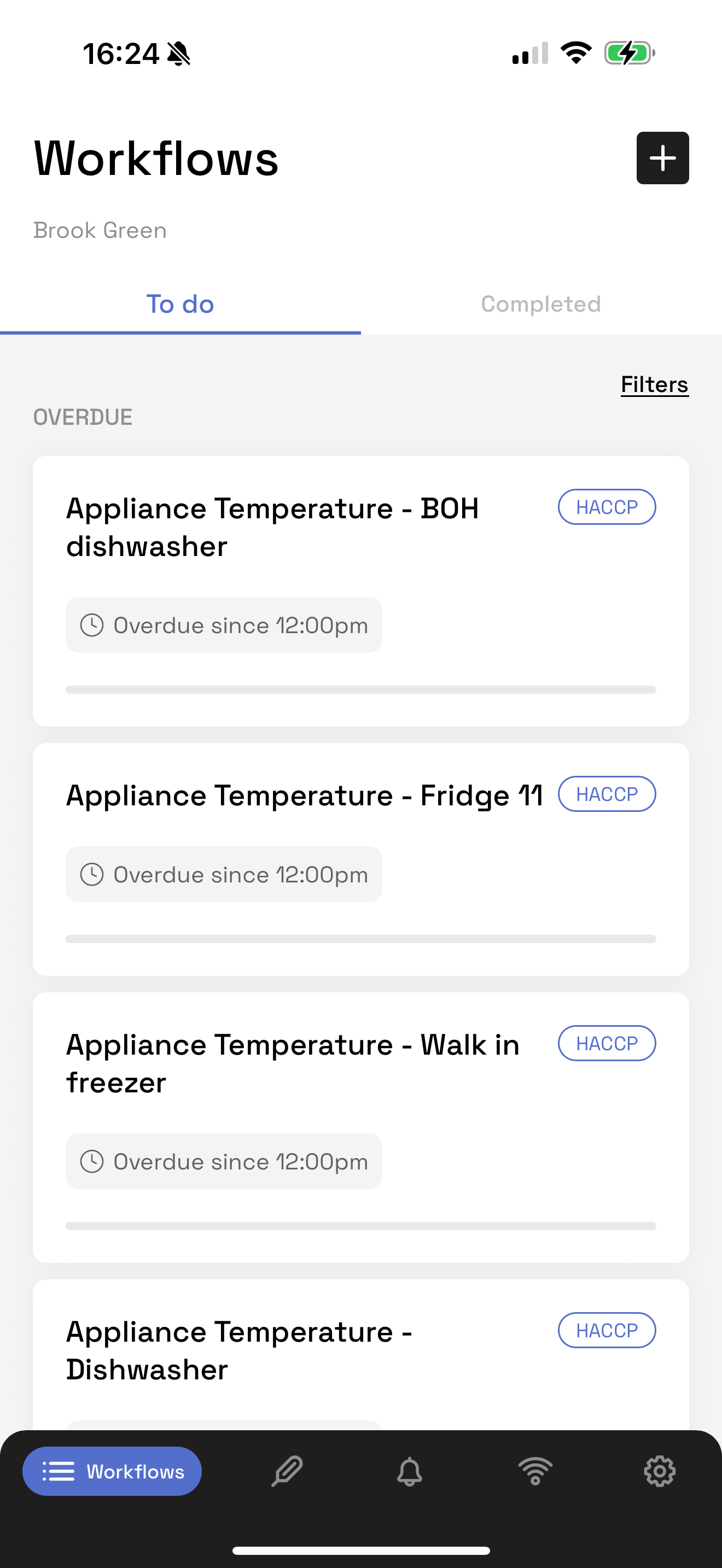
Log into the app and select the ‘Workflows’ tab.
2. View Your Tasks
You’ll see a list of To Do and Completed tasks.
Tasks are organised by schedule - only the ones assigned to you for today will appear in To Do.
Use the Filter to show tasks on other days.
Note:
Tasks expire 24 hours after their scheduled time.
- If completed after the set expiry time, but within 24 hours, they will be marked as “Completed Late”.
- After the 24 hours, they will expire and be marked as 'Overdue' and cannot be reopened.
3. Complete a Task
Tap on a task (e.g. Daily Opening Checks).
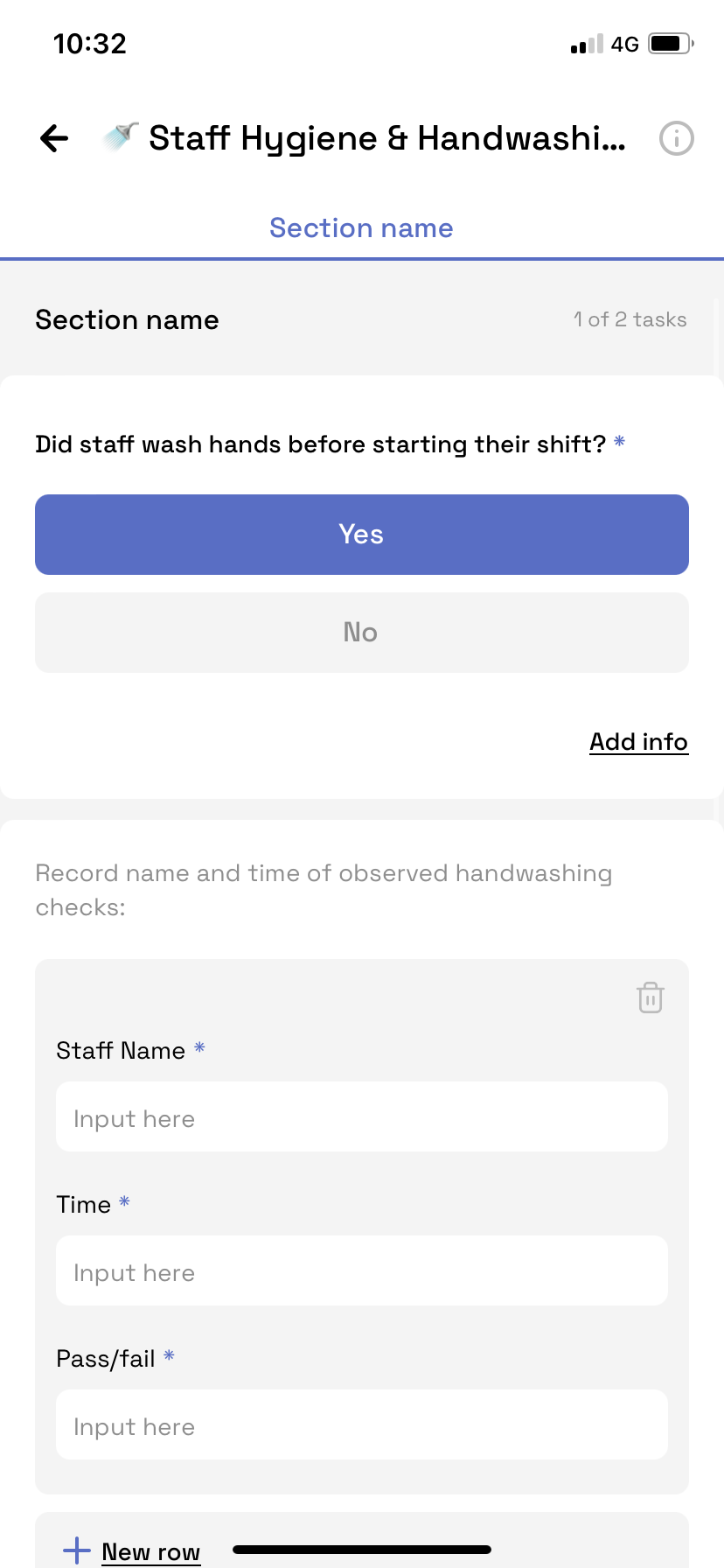
Answer all mandatory questions.
Add info to:
Add comments
Upload photos
Attach supporting files
4. Save as Draft (Optional)
Need more time? You can:
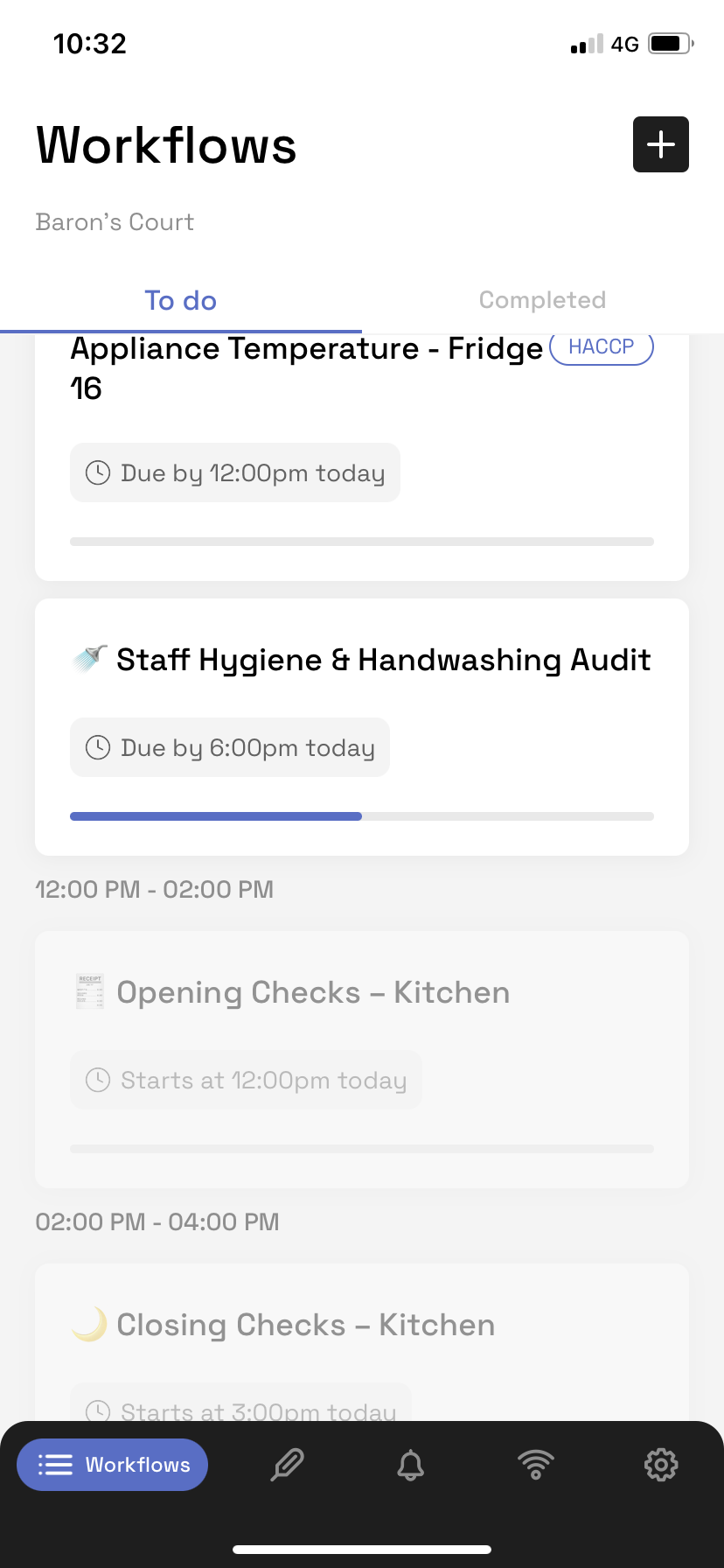
Tap ‘Save as Draft’ and return to complete it later.
The progress bar beneath the workflow title shows how much is complete.
5. Submit the Workflow
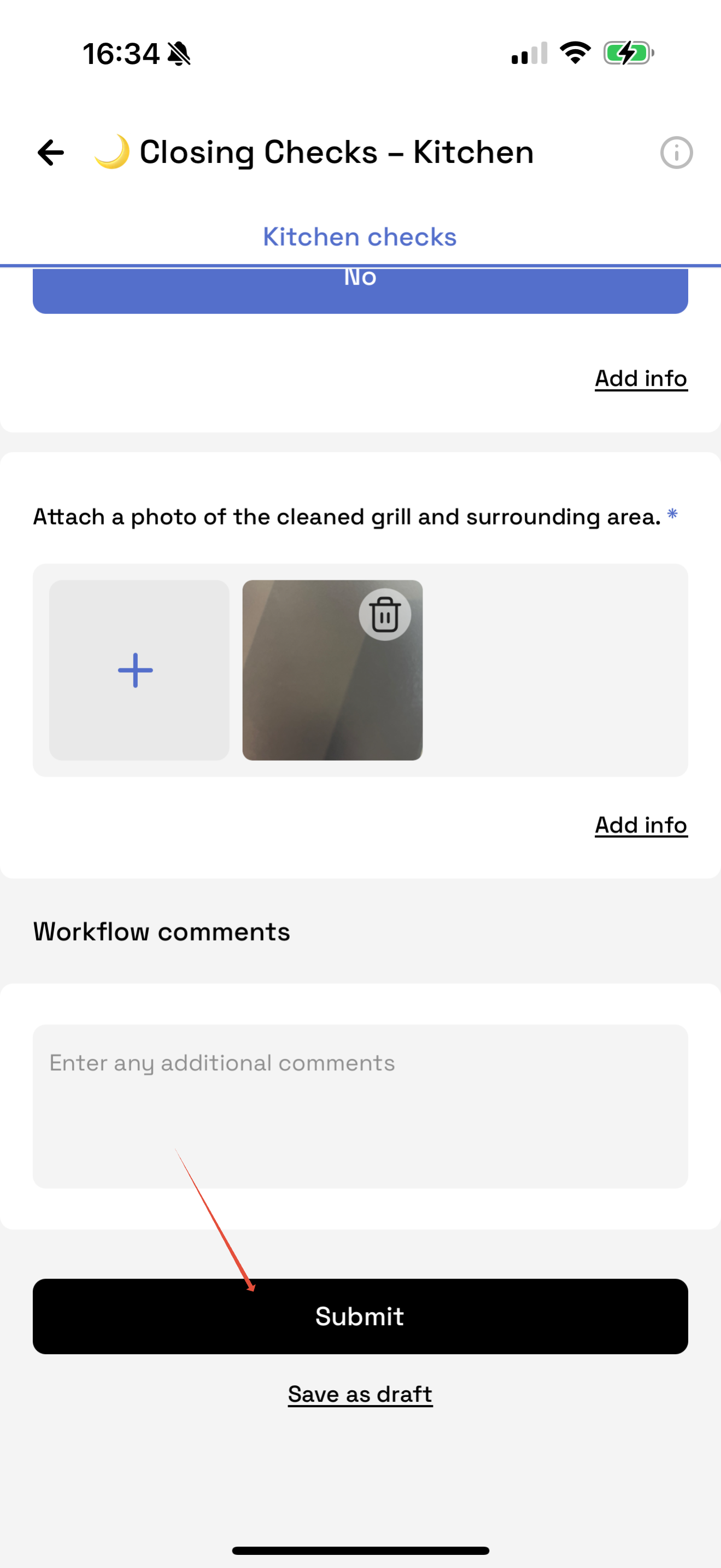
Once all mandatory questions are completed, tap Submit.
If the button is greyed out, check for any unanswered mandatory fields.
Tips
You can only see tasks assigned to you and due today.
Late submissions are still captured but marked as 'completed late' or 'overdue' on the report.
Need to reschedule a task or edit assignees? Ask your manager or admin to update this on the desktop.
Was this article helpful?
That’s Great!
Thank you for your feedback
Sorry! We couldn't be helpful
Thank you for your feedback
Feedback sent
We appreciate your effort and will try to fix the article