You can also complete your workflows from the desktop version.
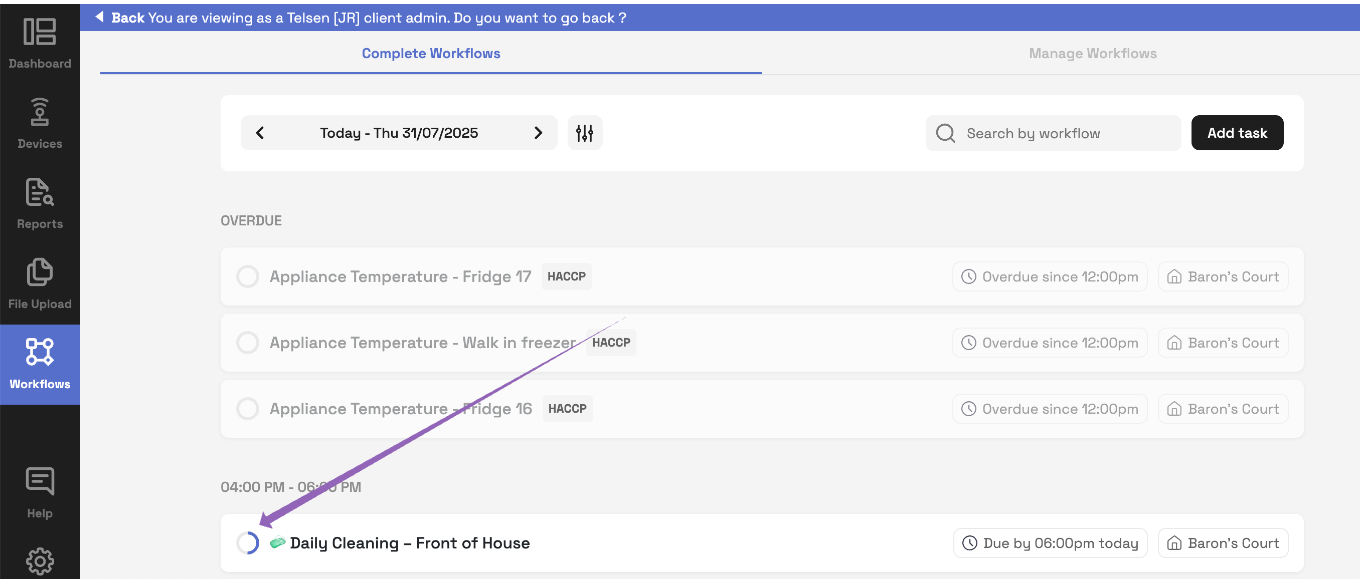
Go to Workflows on the left hand nav bar.
Click on Complete Workflows.
You'll now see a list of workflows scheduled for today.
Use the date navigator to change between dates
Additionally, use the search bar to find a specific workflow
The different workflow statuses are:
Overdue – workflows that are past their due date (24 hours past the due date)
Rolling – open for a set time period (e.g. weekly or monthly checks)
Ad Hoc – submitted as needed, without a fixed schedule
Completed - checks completed that day
✏️ Completing a Workflow
Workflows that are ready to be completed will appear in bold.
Click on a workflow to begin.
You have two options:
Partially Complete: Saves your progress as a draft (you'll see a progress bar indicating how much is done).
Fully Complete: Finish all required questions and submit the workflow. This will be showing in the report as completed, with the time, date and name of person who completed it.
Filling Out the Workflow
Compulsory questions are marked with an asterisk (*).
You can add comments or photos to any step if needed.
When you're done:
Click Submit to finalise
Or click Save as Draft to return later
Review the workflow in the Reports section
Was this article helpful?
That’s Great!
Thank you for your feedback
Sorry! We couldn't be helpful
Thank you for your feedback
Feedback sent
We appreciate your effort and will try to fix the article