Learn how to create, structure, and schedule workflows in Telsen so your team can complete checks, HACCP logs, and daily operations digitally.
How do I build workflows in Telsen?
Once your organisation and Sites are set up, the next step is to digitise your daily checks and operational processes. Whether you’re moving away from paper forms, replacing outdated spreadsheets, or creating new procedures, Telsen gives you three powerful ways to begin building workflows:
1. Create a workflow from scratch (recommended)
Build a fully customised workflow using Telsen’s Workflow Builder.
This gives you full control over structure, answer types, scoring, scheduling, and assignments.
2. Convert your existing paper or digital forms
If you already have checklists, HACCP forms, or compliance sheets, you can convert them into digital workflows by rebuilding their structure inside the Workflow Builder.
3. Duplicate an existing workflow
Use an existing workflow as a starting point and adapt it to new Sites, areas, or teams.
Creating workflows from scratch is considered best practice because it gives you the most flexibility, especially as your processes evolve.
1. Create a Custom Workflow from Scratch
What you’ll need
Company Admin or Site Admin access
Telsen web app
Navigate to the Workflow Builder
Log in to the Telsen web app
Click Workflows from the left-hand menu
Select Manage Workflows
Click Create Workflow
Choose Custom Workflow (full flexibility)
This opens the Workflow Builder where you can structure sections, tasks, questions, and answer types.
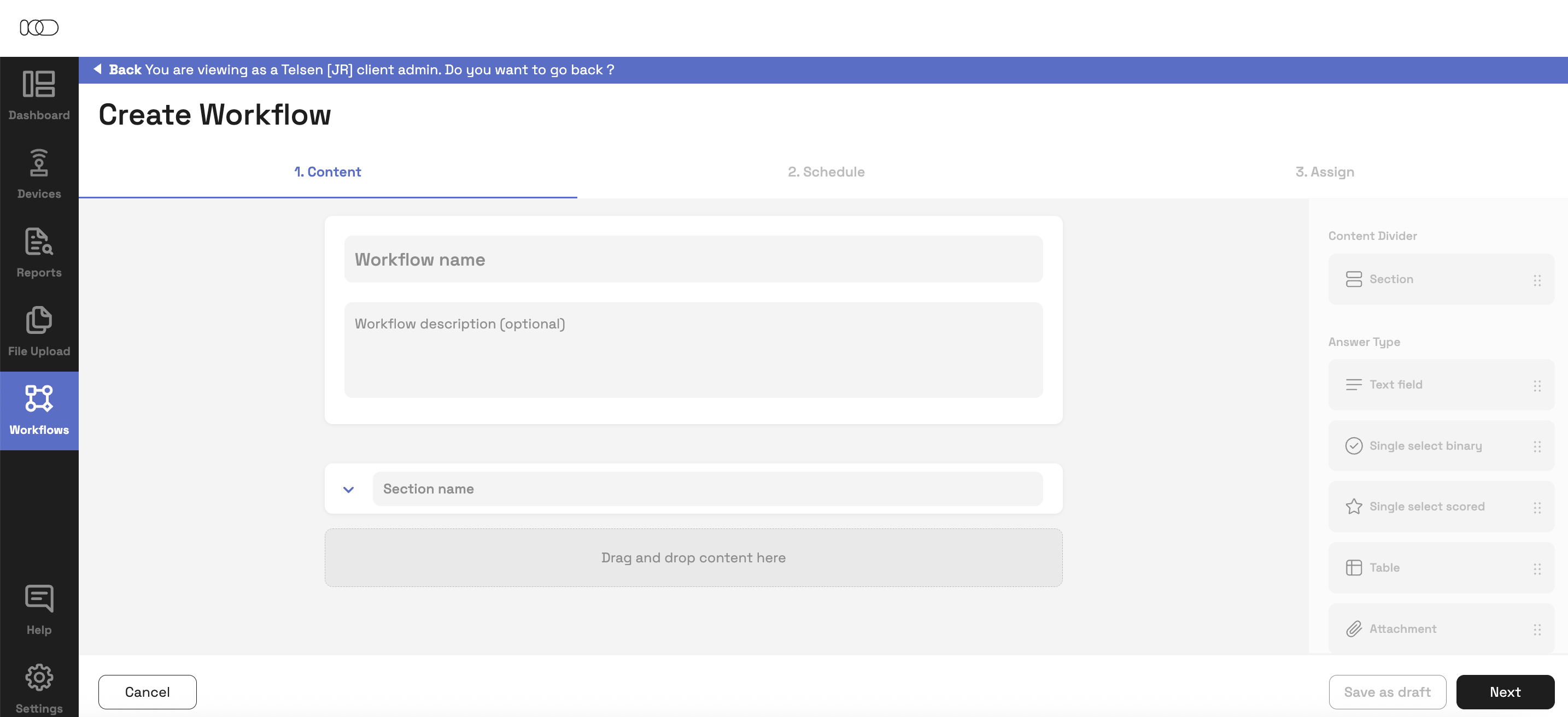
2. Build Your Workflow Content
A well-structured workflow makes it easy for teams to complete tasks accurately and consistently.
Workflow Details
Workflow Name: Add a clear, descriptive title
Description (optional): Provide guidance, purpose, or instructions
Add Sections
Break down your workflow into logical sections (e.g. Opening Checks, Fridge Temperatures, Cleaning Tasks).
This helps with clarity and improves reporting.
Add Questions & Answer Types
Select the appropriate answer type from the right-hand panel:
| Answer Type | Purpose |
|---|---|
| Text Field | Collect free-text responses for notes or explanations |
| Single Select (Binary) | Ideal for Yes/No/N/A compliance tasks |
| Single Select (Scored) | Assign scores to answers for performance auditing |
| Table | Create structured rows/columns for checks like multiple fridges, rooms, or equipment |
| Attachment | Allow photo or file uploads (ideal for evidence during audits or incidents) |
You can add as many sections and questions as needed to match your operational requirements.
3. Schedule the Workflow
Once your workflow content is ready, click Schedule Workflow to choose when and how it should appear for users.
Scheduling Options
One-Off
Triggers once at a specific date and time
Perfect for temporary tasks, audits, monthly deep cleans, or one-time inspections
Repeat
Ideal for recurring tasks (daily, weekly, monthly)
Telsen’s built-in Date Checker ensures your schedule is valid before publishing
Useful for routines such as:
Opening/closing checks
Daily HACCP logs
Weekly equipment cleaning
Monthly fire safety checks
Ad Hoc
Triggered manually at any time
Best for unpredictable events such as:
Food poisoning logs
Incident reports
Visitor sign-ins
Equipment malfunction reports
Each schedule option determines how workflows appear in the mobile and desktop apps.
4. Assign to Sites and Users
Assign your workflow to:
One or multiple Sites
Specific users
Or All Users (recommended if you frequently onboard new staff)
How assignments behave
Users receive a notification when the workflow opens
Another notification is sent 30 minutes before the due time
If a workflow is submitted after the due date, it is marked Completed Late
Workflows not completed by the end of the day become Locked & Overdue in reports
This helps maintain accurate compliance tracking.
5. Publish or Save
Publish
Click Publish to make the workflow live and begin scheduling.
Save as Draft
Not ready to go live yet?
Click Save as Draft to return and finish later.
All scheduled workflows appear under the Completed Workflows tab so you can review or edit as needed.
Next steps
Continue to Build Your Custom Workflows (Part 2) to learn how to:
Edit existing workflows
Duplicate workflows
Add scoring logic
Manage versions and updates
Archive outdated workflows
Was this article helpful?
That’s Great!
Thank you for your feedback
Sorry! We couldn't be helpful
Thank you for your feedback
Feedback sent
We appreciate your effort and will try to fix the article