Learn how to edit, update, duplicate, and manage your workflows in Telsen so your checks stay accurate, compliant, and easy to maintain.
Managing your existing workflows
Once your workflows are created and published, you may need to refine them, update content, or adapt them for additional Sites. Telsen’s Workflow Manager allows you to easily:
Edit workflow content
Update schedules
Add or remove Sites and users
Duplicate workflows
Archive workflows you no longer need
These tools help you keep your operations consistent and ensure all Sites are following the most up-to-date process.
1. Edit an existing workflow
What you’ll need
Company Admin or Site Admin (editing is restricted to your assigned Sites)
Telsen web app access
How to edit a workflow
Log into Telsen web app
Go to Workflows in the left-hand menu
Select Manage Workflows
Click the three dots next to the workflow you want to edit
Choose Edit
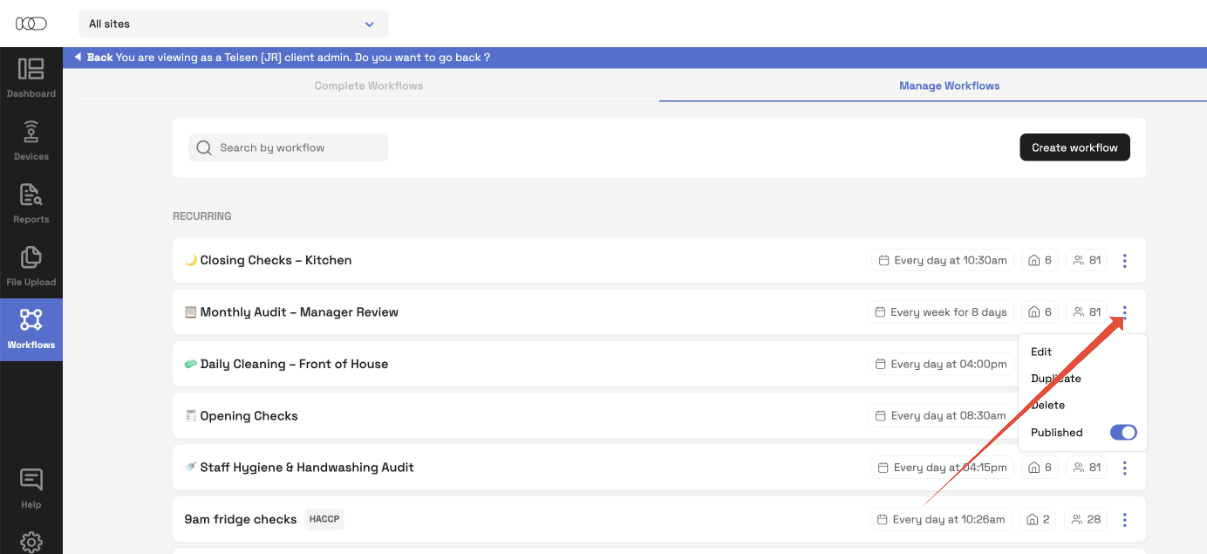
You can update:
Workflow name
Description
Sections (add, rename, delete, reorder)
Questions (edit text, change answer type, add new questions)
Scoring logic (if applicable)
Attachments or evidence requirements
When finished, click:
Publish Changes - updates for all users
Save as Draft - save without publishing yet
2. Update scheduling
If your workflow is already published, you can still modify when it triggers.
Open the workflow
Select Edit > Schedule
Change the workflow frequency, start time, or due time
Confirm using the Date Checker
Click Save Changes
Notes on schedule updates
Updated schedules apply from the next active date/time
Existing overdue or late entries remain unchanged
Users will receive updated notifications automatically
3. Assign or remove Sites and users
You can change who receives the workflow at any time.
To update assignments:
Open the workflow
Select Edit Assignment
Add or remove Sites
Select or deselect individual users
Click Save Changes
4. Duplicate a workflow
Duplicating a workflow is ideal when:
You want the same workflow used across multiple Sites but with a slightly different schedule
You’re creating a variation (e.g., “Kitchen Opening Checks” and “Bar Opening Checks”)
You need a seasonal or event-specific workflow
You want to adapt a strong template without starting from scratch
How to duplicate
Navigate to the workflow in the Manage Workflow tab and select the three dots
Click Duplicate
Make the changes
Rename the new version
Update content or scheduling
Publish when ready
This ensures consistency across your organisation while reducing manual work.
5. Unplublish a workflow
If a process is no longer needed, or you’ve replaced it with an improved version, you can unpublish it.
When to do this:
Seasonal workflows (e.g., Christmas menu checks, summer terrace checks)
Old versions replaced by new ones
Workflows linked to closed or refurbished Sites
How to archive
Open Manage Workflows
Select the three dots next to the workflow
Click Unpublish
Archived workflows:
No longer trigger or appear for users
Remain stored in the Manage Workflows tab for reporting and audit trails
Can be restored if needed
6. Version control (recommended process)
To keep your workflows clean and consistent:
When updating a workflow:
Small edits: Edit the live workflow directly
Major changes: Duplicate > update > publish > unpublish old version
This ensures reporting remains accurate and avoids breaking active schedules.
7. Review schedule performance
Under Completed Workflows and in the reports you can review:
On-time completion rate
Late submissions
Overdue (never completed) tasks
User-specific performance
Site-level performance
This helps identify training gaps, operational issues, or staff compliance concerns.
Next steps
Continue to Digitise Your Operations (Part 3) to learn how to:
View workflow results
Analyse performance
Export records for audits
Use dashboards and scoring tools
Was this article helpful?
That’s Great!
Thank you for your feedback
Sorry! We couldn't be helpful
Thank you for your feedback
Feedback sent
We appreciate your effort and will try to fix the article