Customise your settings using the desktop app.
The first step to getting started is to update your organisation’s details and settings to ensure that your Telsen account reflects how your business operates. This helps your sites run smoothly day-to-day and ensures you get the most value from the platform.
Company Details
You can manage your organisation’s name, logo, contact details, and HACCP probe preferences. Updating these settings ensures your environment reflects your company and supports smooth day-to-day operations.
What you'll need
A Company or Site Admin Role
Access via the Telsen web app
Update your organisation’s details
Log in to the Telsen web app.
Click Settings
Go to Organisation in the left-hand menu.
Under Company Details, view information such as:
Organisation name
Timezone
Modules
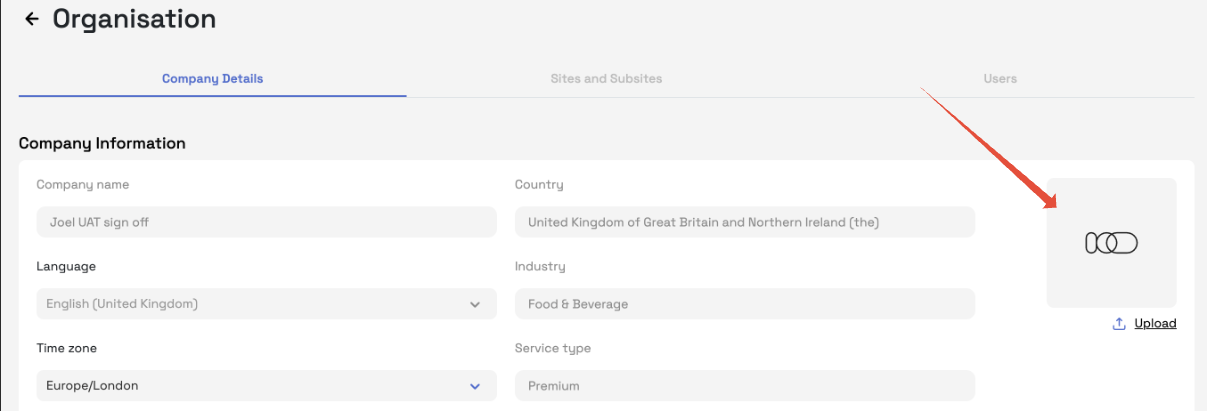
Upload your company logo and theme
Your organisation’s logo helps staff easily recognise your brand across both desktop and mobile.
Click Upload under the logo section.
Upload your logo (PNG, JPG, or SVG).
Choose your preferred theme colour if applicable.
Click Save changes.
Your branding will appear on:
The Telsen login page
Desktop dashboards
Mobile app interface
Configure HACCP probe settings
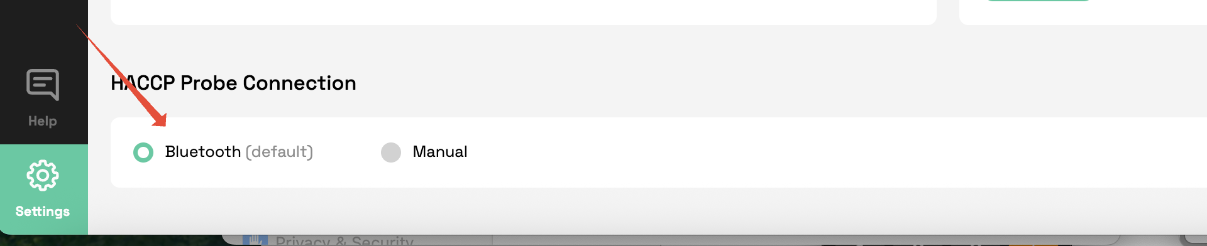
If your team completes HACCP temperature checks via the Telsen mobile app, you can configure your default probe settings. On the same page, scroll down to HACCP Probe Connection:
Bluetooth mode will be the default setting.
Change this to Manual mode if you want users to avoid having to change this manually on the mobile app, during each HACCP check.
Save your changes.
This reduces errors and speeds up compliance checks.
Next steps: check out how to Create Sites
Was this article helpful?
That’s Great!
Thank you for your feedback
Sorry! We couldn't be helpful
Thank you for your feedback
Feedback sent
We appreciate your effort and will try to fix the article