The HACCP Templates Tab allows Company Admins to configure and manage all HACCP workflow templates used across their organisation. These templates determine which food safety checks appear in the Telsen mobile app and how each workflow behaves, including temperature limits and corrective actions.
Before You Begin
Before configuring HACCP workflows, make sure the following have been added to Telsen under Settings:
Products – Ensure all food items are listed.
Suppliers - Add all supplier details (useful for Delivery checks)
Appliances - Add all fridges, freezers, and other temperature-controlled equipment (useful for Appliance Temp logging)
These must be set up first for HACCP workflows to function correctly in the mobile app.
Accessing the HACCP Templates Tab
Go to the Settings tab.
Select HACCP Workflows.
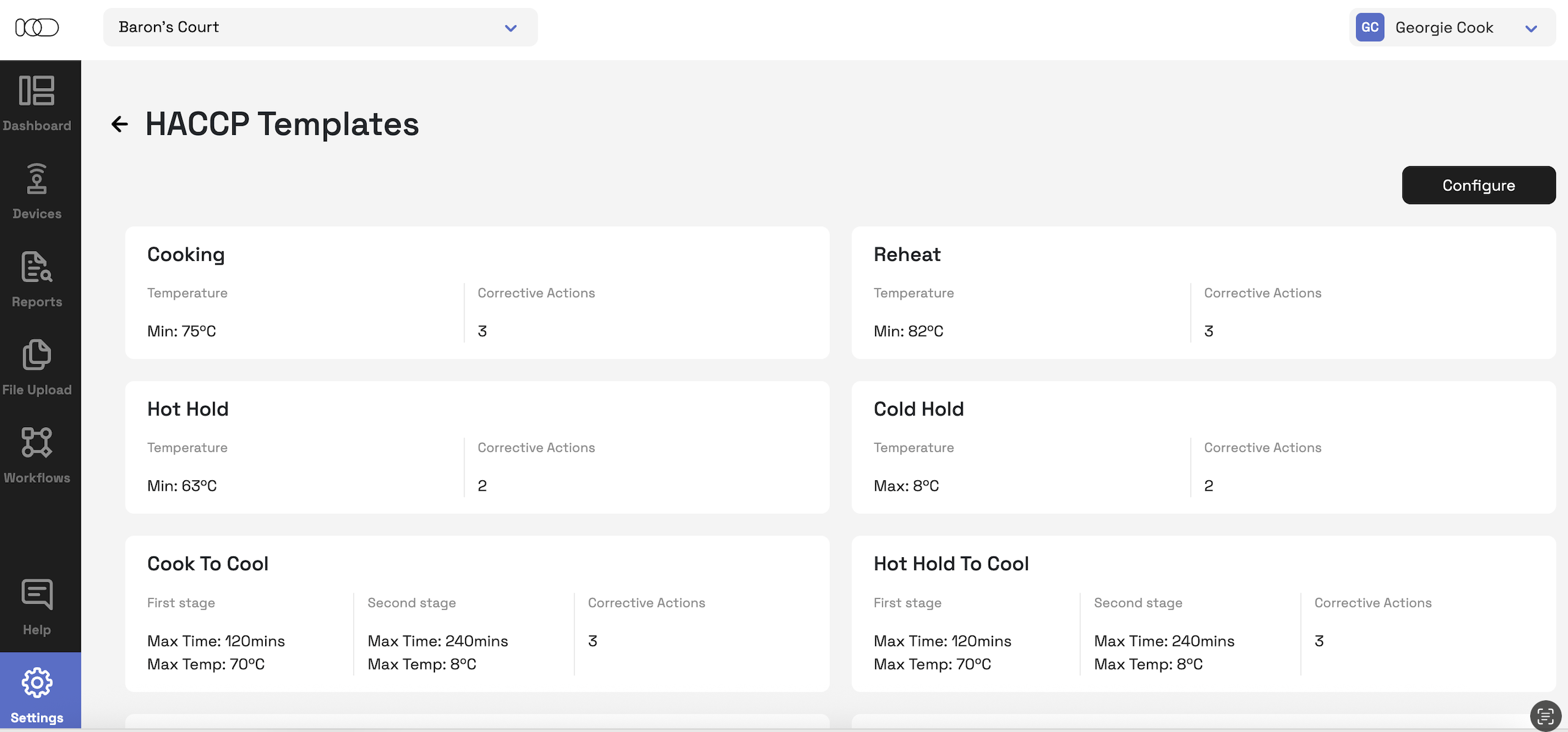
You’ll see a list of all available HACCP workflows for your organisation.
Reviewing and Managing Workflows
Review all available workflows and disable any that your organisation does not use.
Select Configure in the right corner
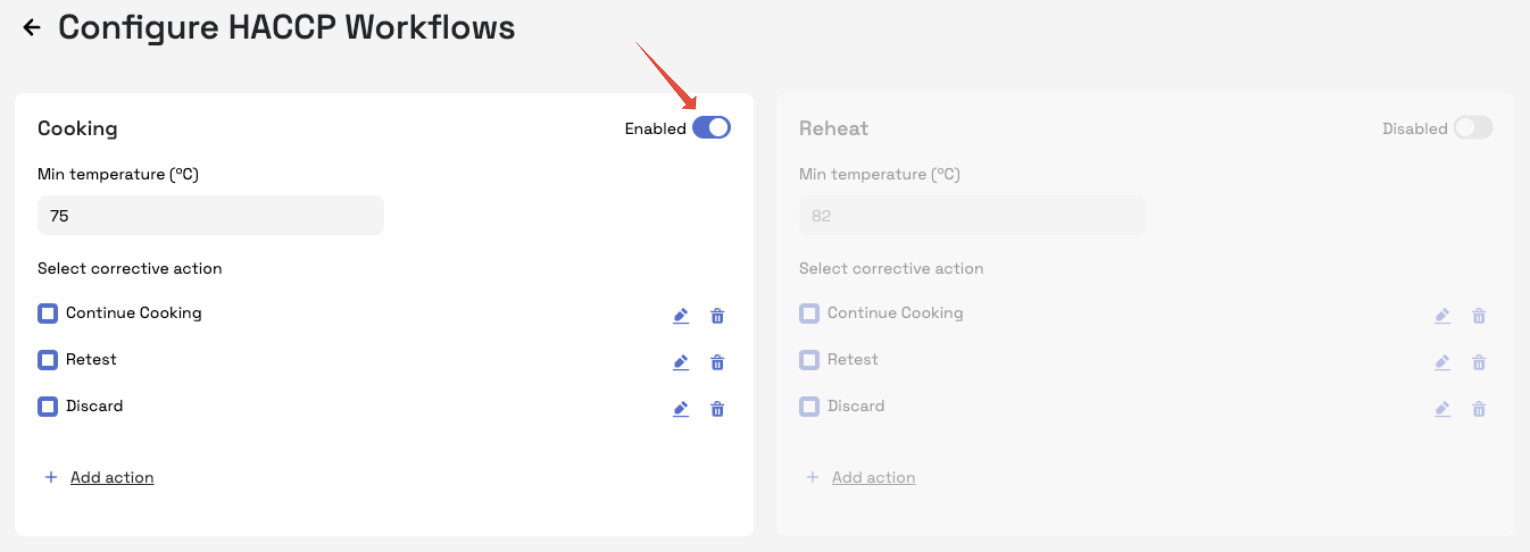
You can now use the ‘Enabled’ toggle next to each workflow to turn it on or off.
Enabled workflows will appear in the Telsen mobile app for staff to complete.
Disabled workflows will be hidden and unavailable for users.
Only enable the workflows that are relevant to your operations (e.g. Cooking, Delivery, Cold Hold, Reheat, etc.).
Configuring HACCP Workflow Templates
Once you’ve enabled the necessary workflows, you can configure each one to match your operational requirements.
From here, you can:
Set temperature thresholds (e.g. minimum cooking temperature).
Define corrective actions that appear when a reading falls outside set limits.
Make sure these parameters align with your site’s food safety standards and local regulatory requirements.
Tip: Keeping corrective actions clear and consistent helps ensure staff take the right steps when issues occur (e.g. “Reheat until 75°C” or “Discard product”).
Site-by-Site Configuration
HACCP workflows must be configured individually for each site.
Use the Site Picker at the top of the screen to select the site you want to update.
Repeat configuration for all sites in your organisation to ensure accuracy across locations.
Important: Settings do not automatically copy between sites - always check that each site’s templates match your requirements.
Mobile App View
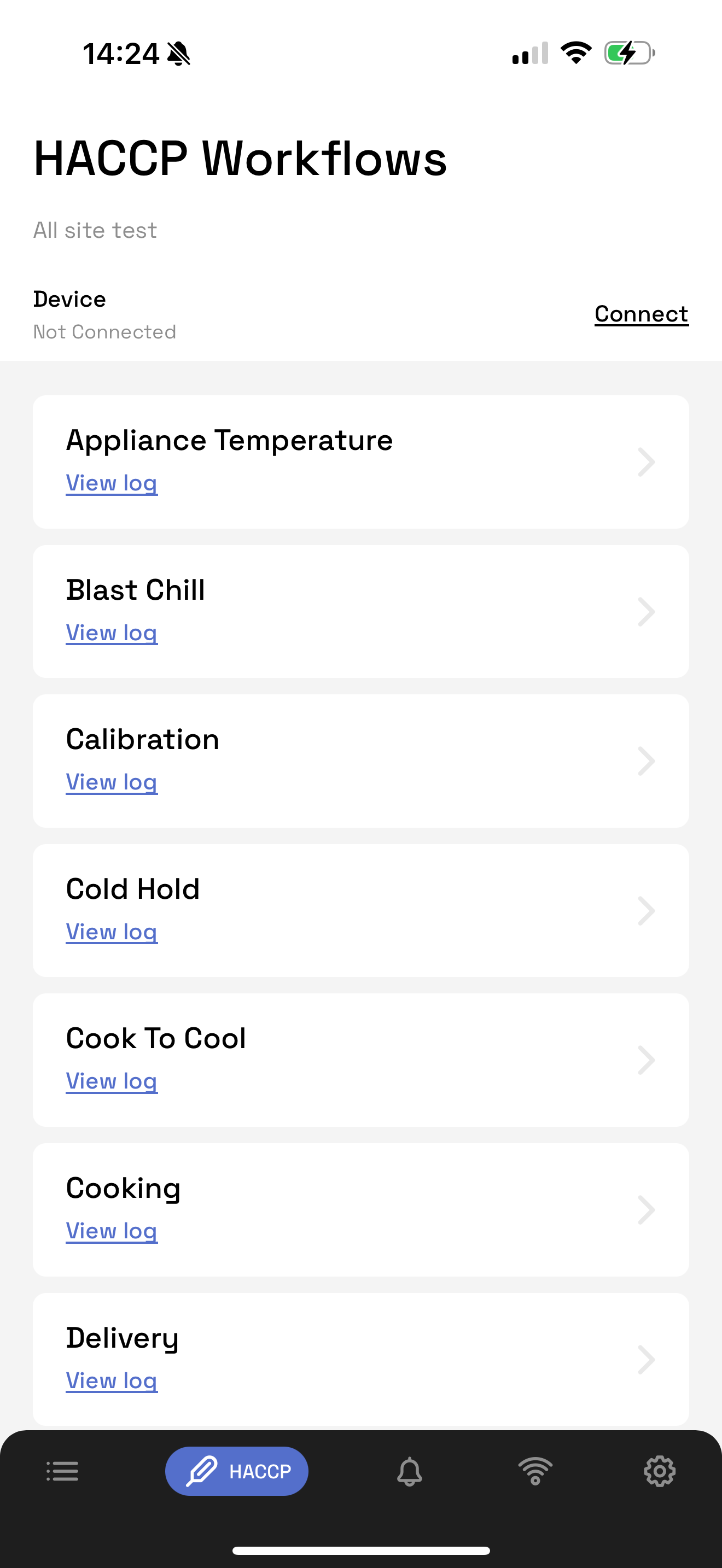
All configured workflows and checks will display in the mobile app. Staff will only see the relevant HACCP workflows complete for their site.
Was this article helpful?
That’s Great!
Thank you for your feedback
Sorry! We couldn't be helpful
Thank you for your feedback
Feedback sent
We appreciate your effort and will try to fix the article