Use this option instead of an ad-hoc HACCP check if you want to:
Track who performed the checks
Send user notifications before the check begins
Log results automatically in the daily site reports
Step 1: Create a Workflow
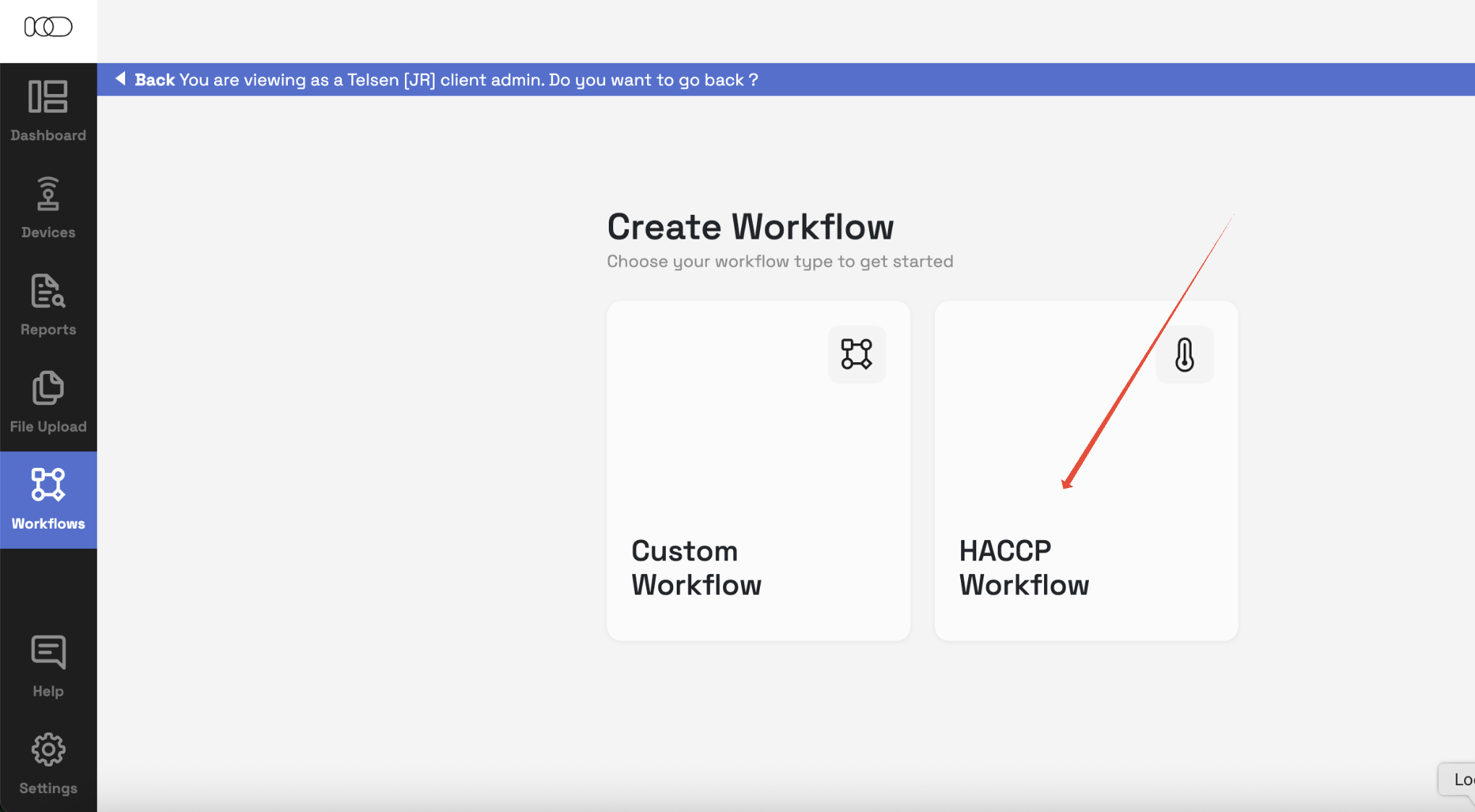
From the left hand nav bar, go to Workflows.
Go to Manage Workflows then Create Workflow.
Select HACCP Workflow.
Step 2: Assign Sites and Users
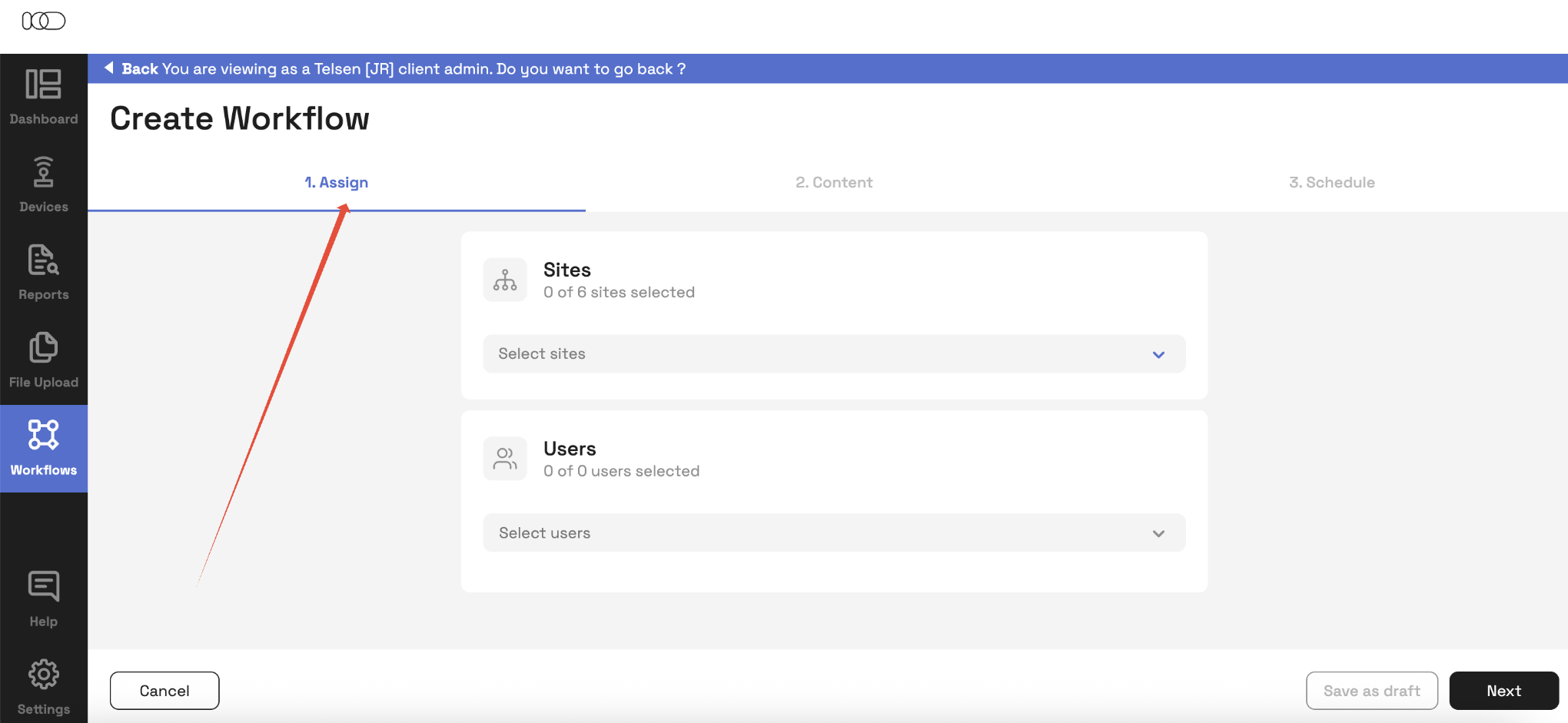
Click Assign.
Select the sites where the workflow should run.
Select the users responsible for performing the checks.
Step 3: Choose Content
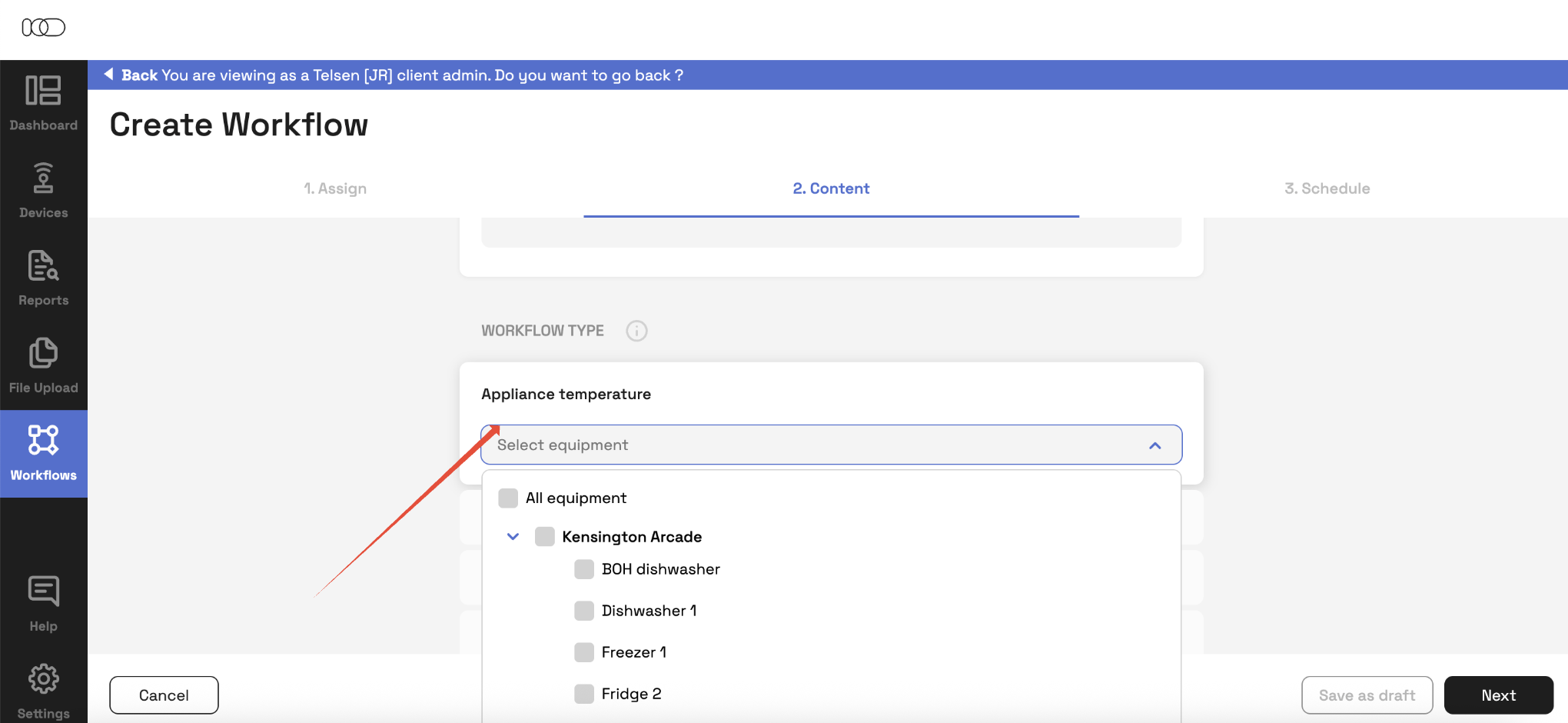
Go to the Content tab.
Enter a workflow name that makes it clear (e.g., Daily HACCP Kitchen Check).
From the list, select the HACCP Workflow/s you wish to schedule
Confirm you have chosen the workflow type/s that matches your site needs.
* Note, you will need to ensure the correct products, suppliers and appliances have been added.
Step 4: Schedule the Workflow
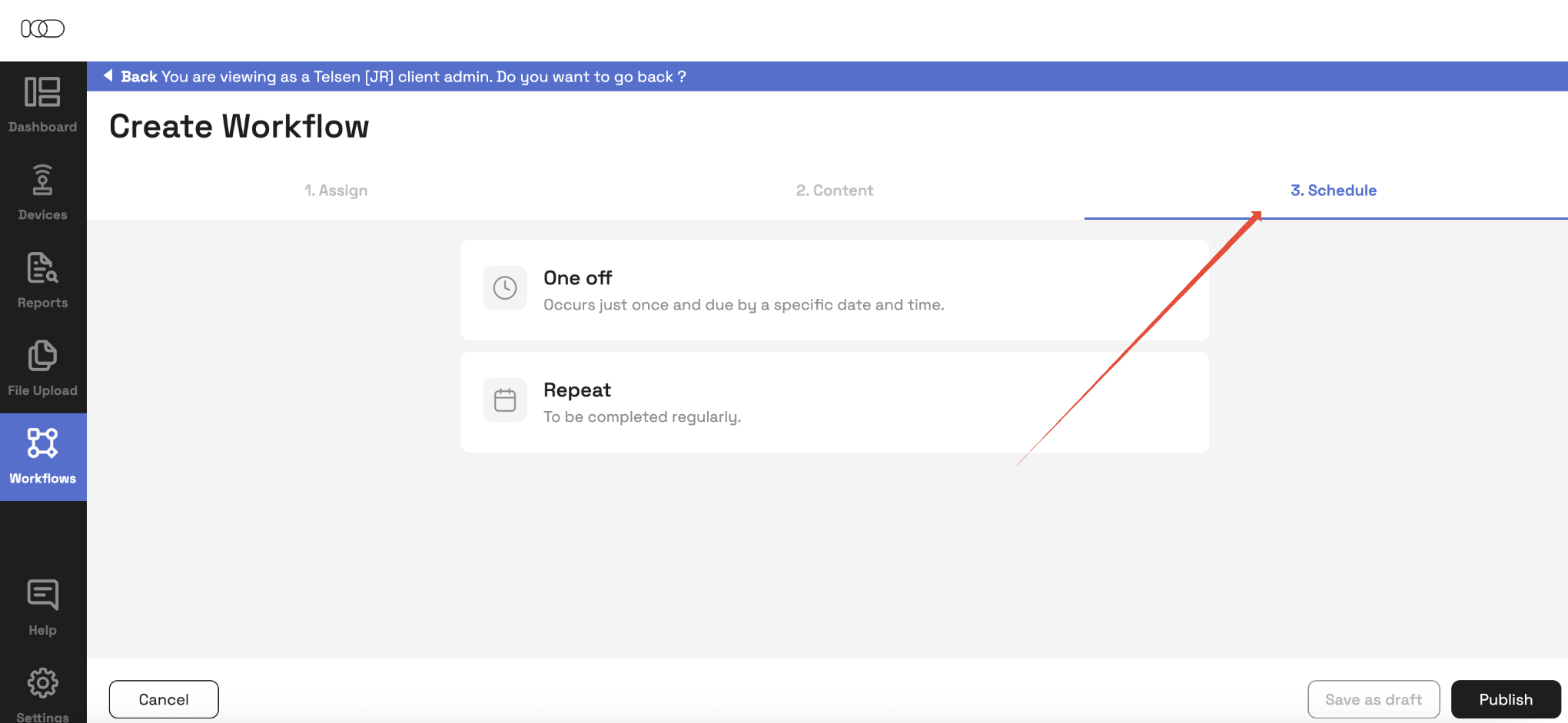
Choose whether the workflow should run as a one-off task or on a repeating schedule (e.g., daily, weekly).
Remember: HACCP workflows cannot be performed on desktop. They must be scheduled for mobile use.
Step 5: Notifications & Tracking
Users will receive:
A notification when the workflow is due to start.
A reminder 30 minutes before the scheduled time.
Once completed, results are automatically logged in the site’s daily reports.
✅ You’re done! Your HACCP workflow check is now scheduled. Users will be notified and the workflow will be tracked just like a custom workflow.
Was this article helpful?
That’s Great!
Thank you for your feedback
Sorry! We couldn't be helpful
Thank you for your feedback
Feedback sent
We appreciate your effort and will try to fix the article