Telsen Sensors let you monitor your compliance temperatures 24/7 across fridges, freezers and other critical equipment. When something goes wrong, Telsen can:
Send alerts to the right people
Log corrective actions against each alert
Track whether issues were properly resolved
This guide explains how alerts work, how to configure them on desktop, and what your teams see on mobile.
1. Managing Alerts (Desktop)
All alert configurations live in one place.
How to access alert settings:
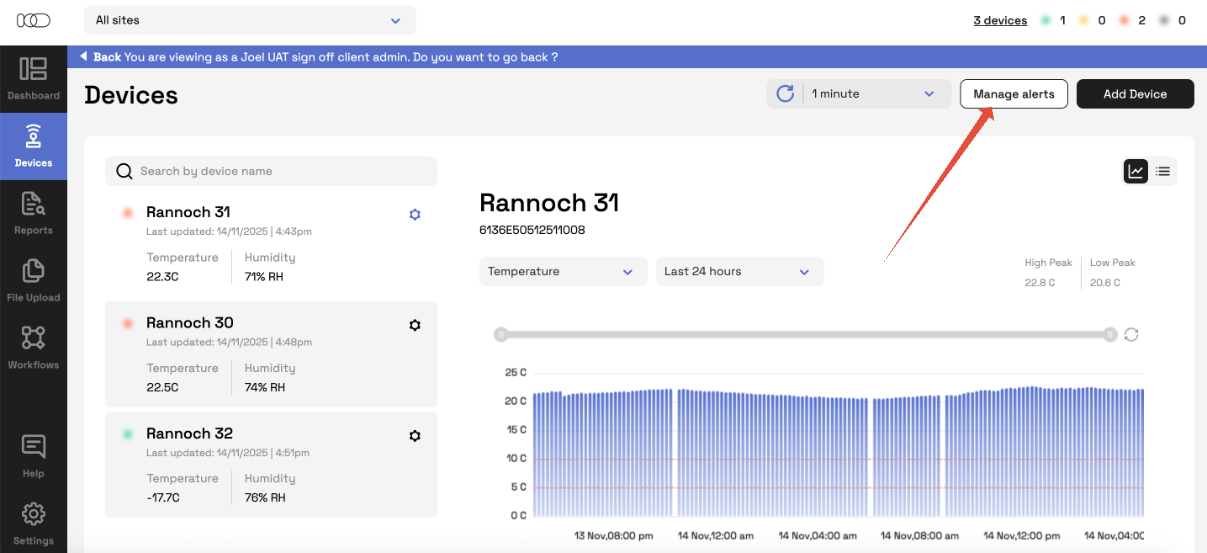
Go to Devices on desktop.
Once your company has at least one sensor added, the Manage alerts button becomes available.
Click Manage alerts to view, create, and edit all alert rules.
What alert rules do:
Alert rules define:
The condition that triggers an alert (e.g. temperature above 5°C for 30 minutes)
Which sensors the rule applies to
Who receives notifications when it triggers
This centralised view makes alerts:
Easier to understand
Easier to maintain
Much faster to set up or change across many sites
2. Review Default Alert Rules for New Companies
When you first log on to Telsen, you will have automatically been provided two starting rules (no sensors are assigned yet):
a. Fridge Temperature Alert
Example: Above 5°C for more than 30 minutes
Comes with default corrective actions (e.g. check door, move stock)
b. Offline Alert
Triggers when a sensor stops transmitting data
Includes default corrective actions
To activate these defaults:
Go to Manage alerts
Assign the relevant sensors to each rule (e.g. all fridge sensors)
Assign the users who should be notified
Click Save
You’ll have working alerts in just a few minutes.
3. Now create and edit your Alert Rules
Each rule contains the following components:
1. Parameter
What you’re monitoring:
Temperature
Humidity
Energy
Offline (no data being received)
2. Threshold
The point at which the sensor is considered “out of range”.
Examples:
Above 5°C (fridges)
Below –18°C (freezers)
3. Time Delay
How long the sensor must stay out of range before an alert fires.
This prevents false alarms caused by door openings or quick temperature dips.
4. Repeat Alerts (optional)
If enabled, notifications repeat every 10 minutes while the issue continues.
Useful for critical equipment that must be acted on immediately.
5. Time & Day Windows (advanced)
Choose when alerts are active:
Specific days (e.g. Mon - Fri)
Specific hours (e.g. 06:00 -17:00)
This helps avoid notifying people outside of their working hours.
Note: The time window applies to all selected days (e.g. 06:00 -17:00 on Mon - Fri).
6. Corrective Actions
Preset buttons that let staff log what they did (e.g. Checked door / Informed management.
7. Assigned Sensors & Users
A rule only works when both are assigned.
4. Assign Sensors & Users to Rules
Once your rule is built, you choose:
Which sensors it applies to
Example:
“Fridge High Temp” → assign all fridge sensors across relevant sites.
Who gets notified
Users at Site A only receive alerts for sensors at Site A.
Users at Site B only receive alerts for Site B, and so on.
This ensures alerts always reach the right team.
5. Sensor Coverage Widget
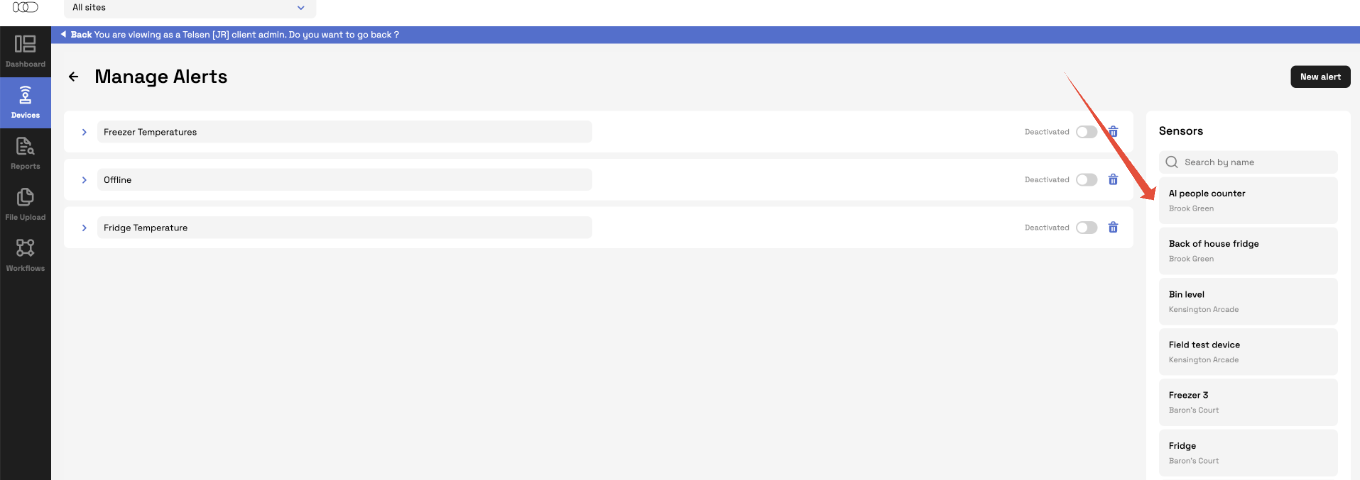
On the right side of the Manage alerts screen, a widget shows:
A full list of all sensors
How many alert rules each sensor is attached to
This helps you spot gaps such as:
A sensor with zero alerts assigned
A sensor with temperature alerts but no offline alert (if only 1 alert is set, for example)
You no longer need to click into each sensor to check coverage.
6. Understanding Alert Status Colours
Telsen uses consistent colour states:
? Green = Safe
Sensor is in range. No alerts are active.
? Amber = Warning (delay countdown)
Sensor has crossed the threshold.
The delay timer is running, but no alert has fired yet.
? Red = Active Alert
The temperature has been out of range for long enough to trigger the rule.
A notification is sent, and corrective action is required.
Grey = Expired (reports only)
Sensor returned to safe range but no corrective action was logged within the 24-hour grace period.
7. Corrective Actions & the 24-Hour Grace Period
To prevent incorrect “early resolutions”, Telsen uses smarter alert logic:
Alert fires → status becomes Red.
User logs a corrective action → recorded, but status stays Red until the temperature returns to normal.
When back in safe range → a 24-hour grace period begins.
Within 24 hours you can still og corrective actions (on mobile and desktop)
If no action is logged after this 24 hour period the alert becomes Expired in reporting.
This ensures you always have:
A correct timeline
Properly logged actions
No misleading “closed” alerts
8. What Users See on Mobile
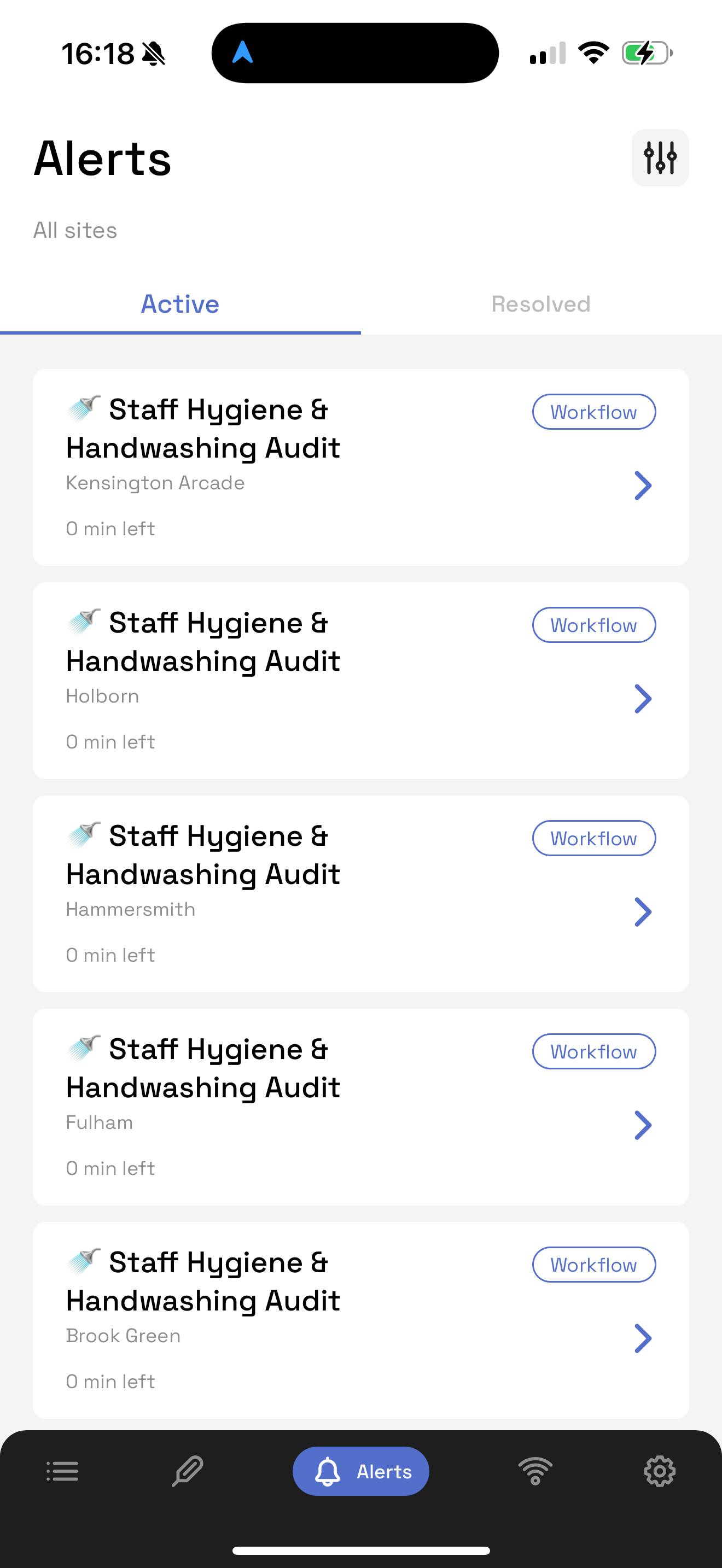
The Alerts tab in the mobile app is split into two sections:
Active
Any open alerts (including workflows) still needing attention that day
Includes alerts for 24 hours
Resolved
Alerts with corrective actions logged within the last 24 hours
Still visible during the grace period
Was this article helpful?
That’s Great!
Thank you for your feedback
Sorry! We couldn't be helpful
Thank you for your feedback
Feedback sent
We appreciate your effort and will try to fix the article