The Settings tab allows you to view and update your profile information, switch between sites, and manage your account preferences within the Telsen app.
Step-by-Step Guide
1. Access the Settings Tab
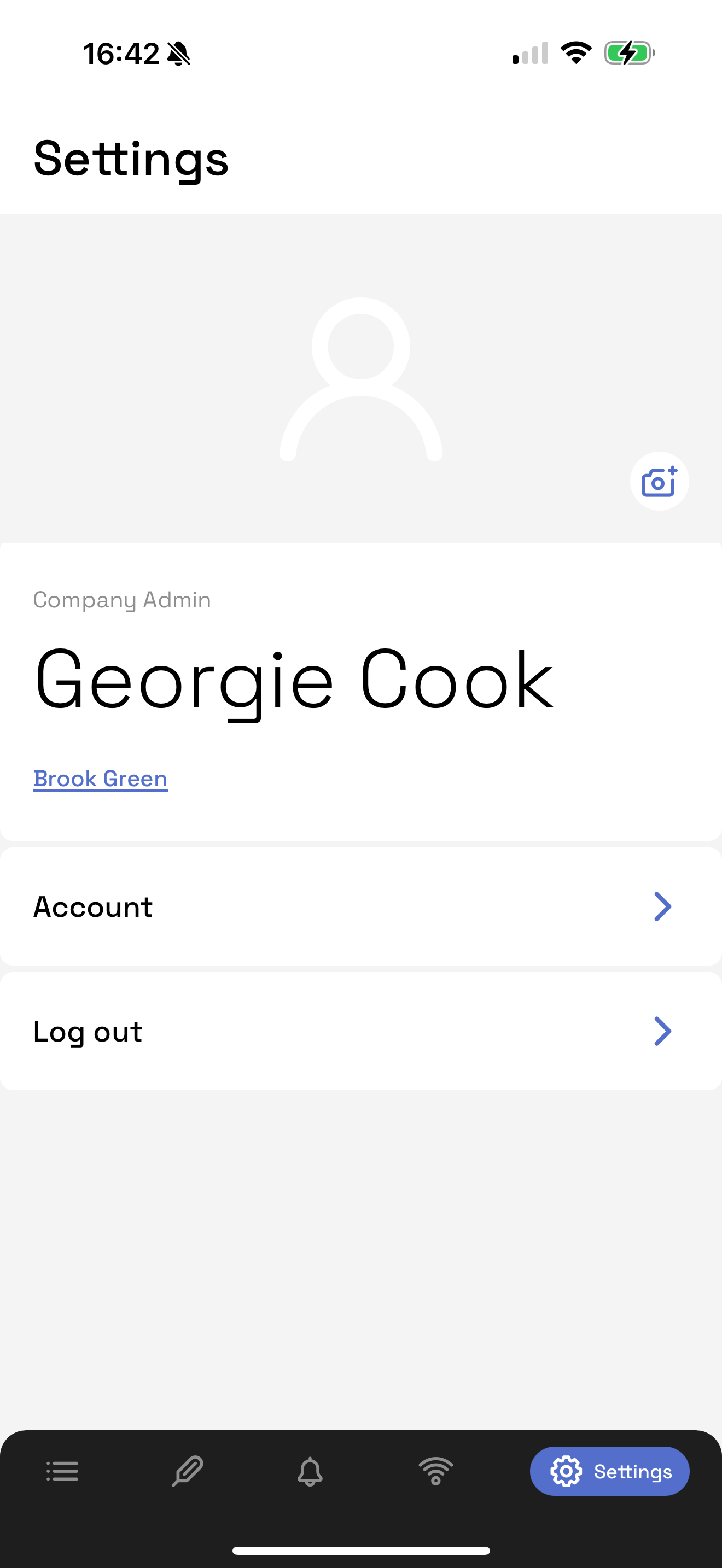
Tap Settings from the main menu.
Your profile photo, name, role, and current site will be displayed at the top of the screen.
2. Update Your Profile Photo
Tap your current photo to view or upload a new one.
Choose an image from your device and confirm to save.
3. View and Edit Account Details
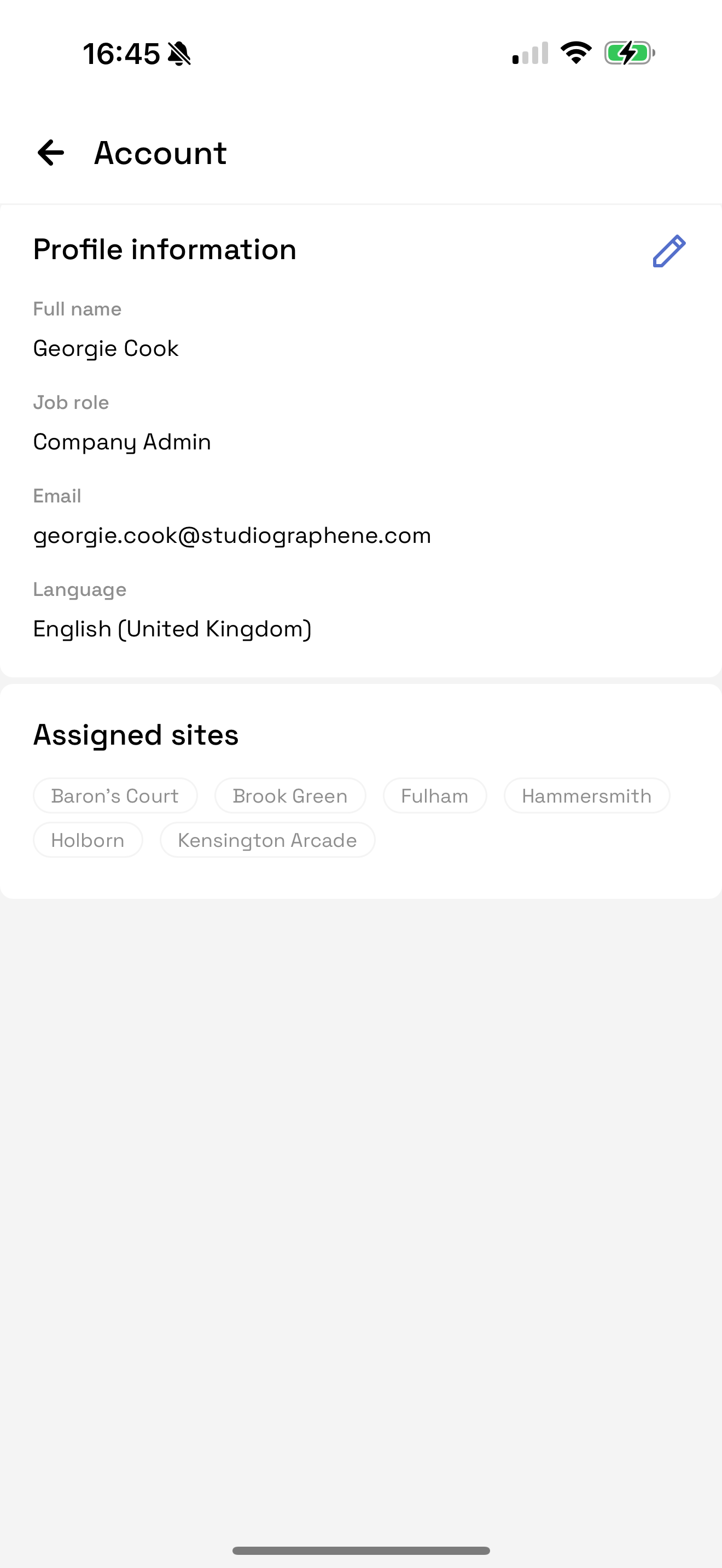
Tap Account to open your account details.
You’ll see:
Full name
Job role
Email address
Preferred language
Assigned sites
To make changes, tap Edit.
You can update your name or language.
Tap Save to confirm, or tap outside the modal to close without saving.
Use the Back button to return to the main Settings screen.
4. Switch Between Sites
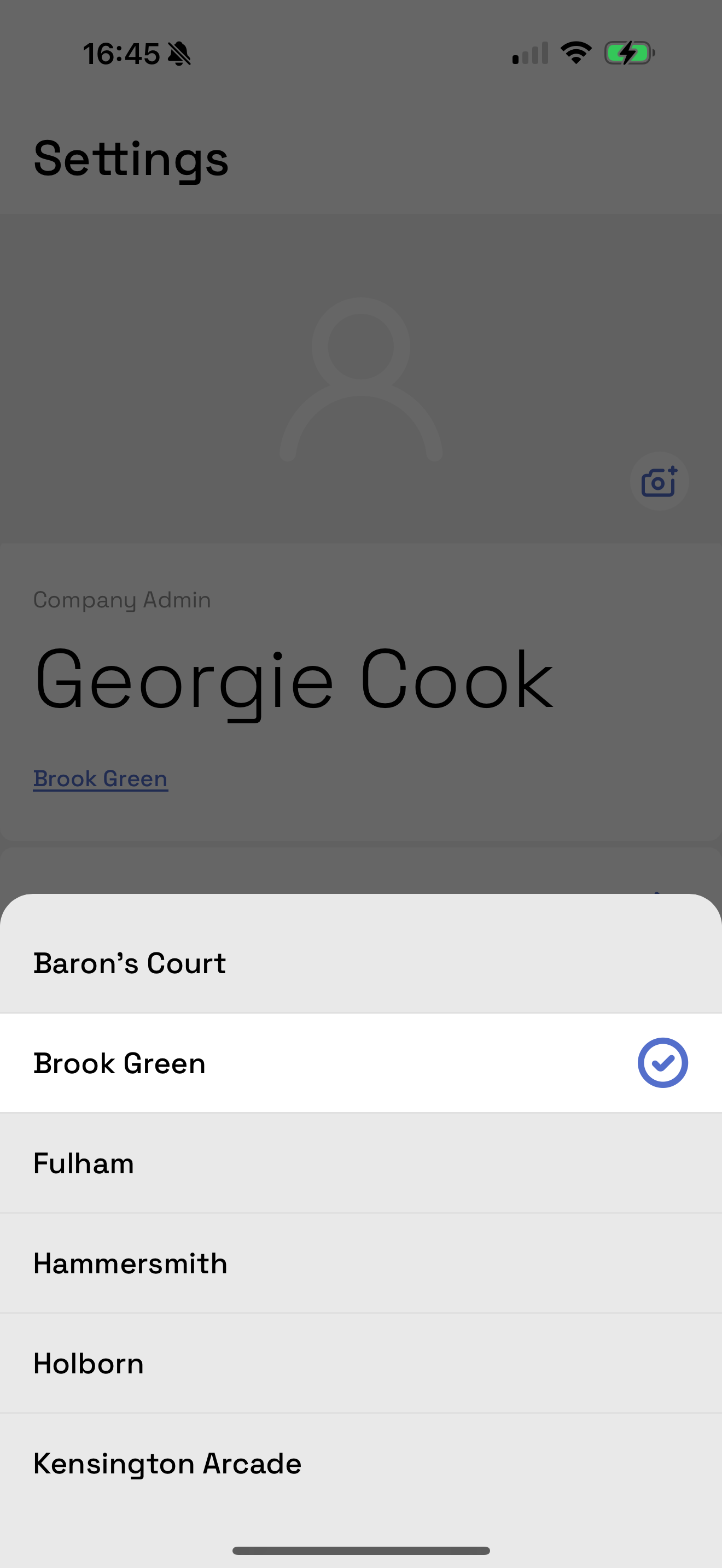
Tap and hold the Settings tab to open the Site Selection modal.
Choose a different site linked to your profile to switch your active view.
5. Log Out
Tap Log Out from the Settings screen to safely exit the app.
Was this article helpful?
That’s Great!
Thank you for your feedback
Sorry! We couldn't be helpful
Thank you for your feedback
Feedback sent
We appreciate your effort and will try to fix the article