The Delivery List workflow helps you set up and complete all your delivery checks efficiently from the Telsen mobile app. Follow the steps below to set up and submit your delivery list for the day.
1. Open the Telsen App
Launch the Telsen mobile app.
From the home screen, navigate to HACCP Workflows.
Select the Delivery List workflow.
2. Create new list
Tap Create New List.
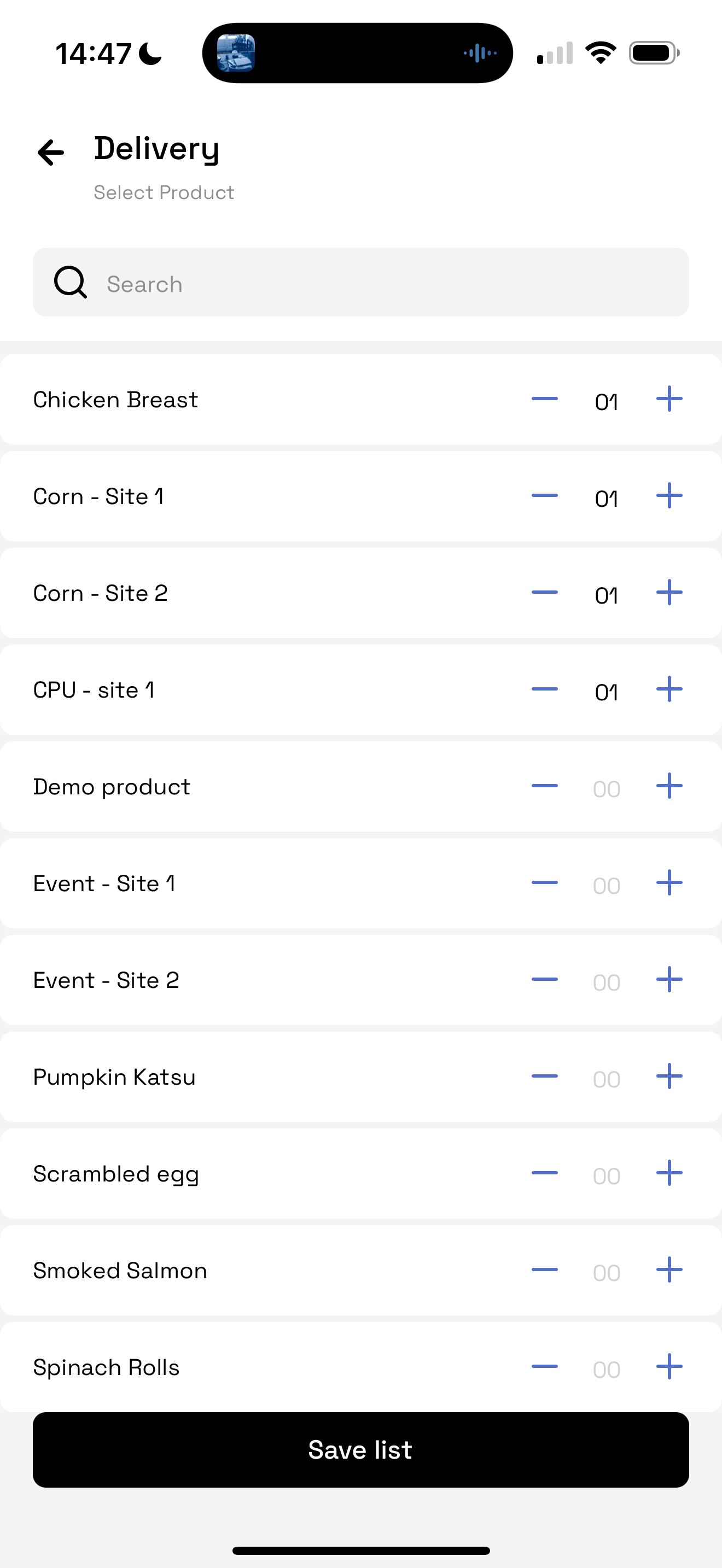
Choose your supplier and enter the number of products per supplier.
(Note: Suppliers and product lists must be set up beforehand on the desktop platform.)
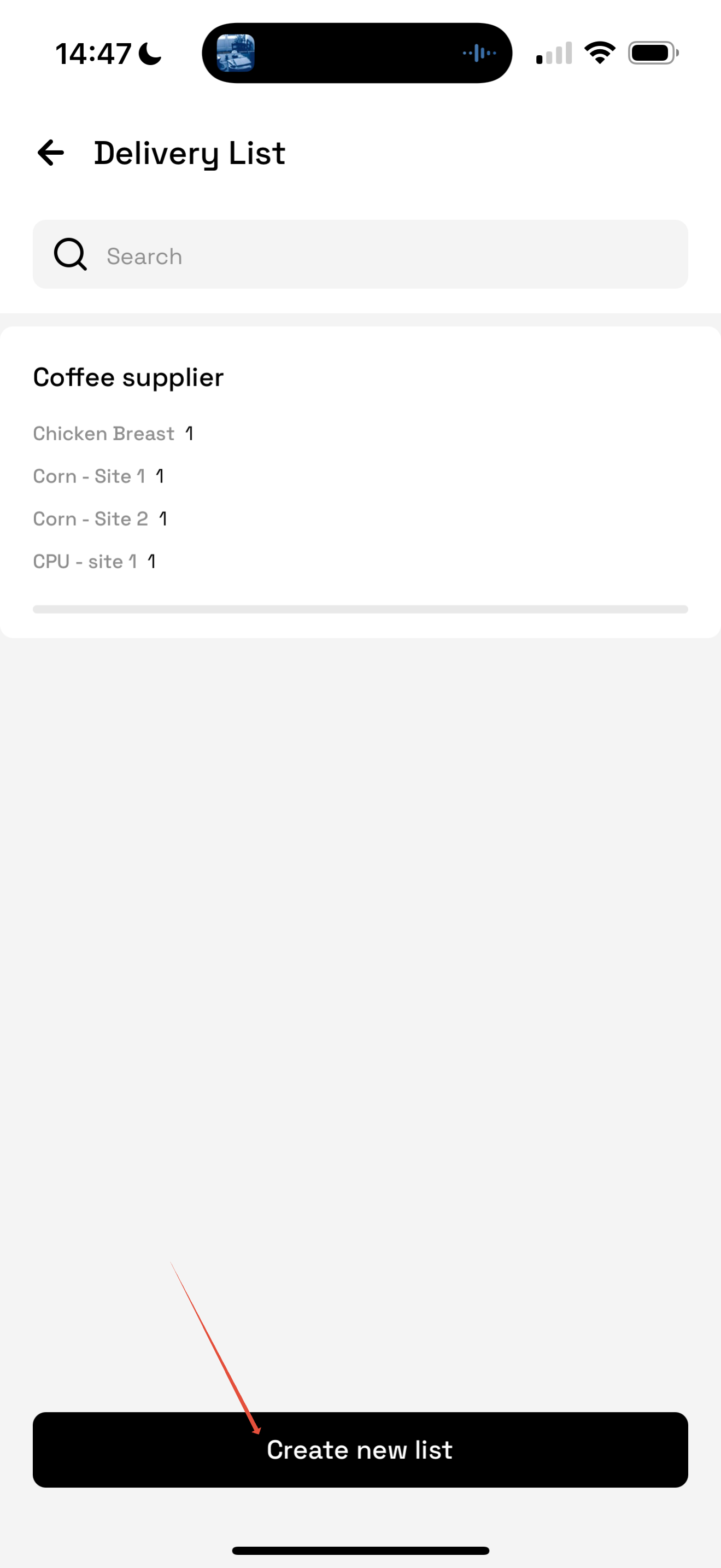
- Tap Save List.
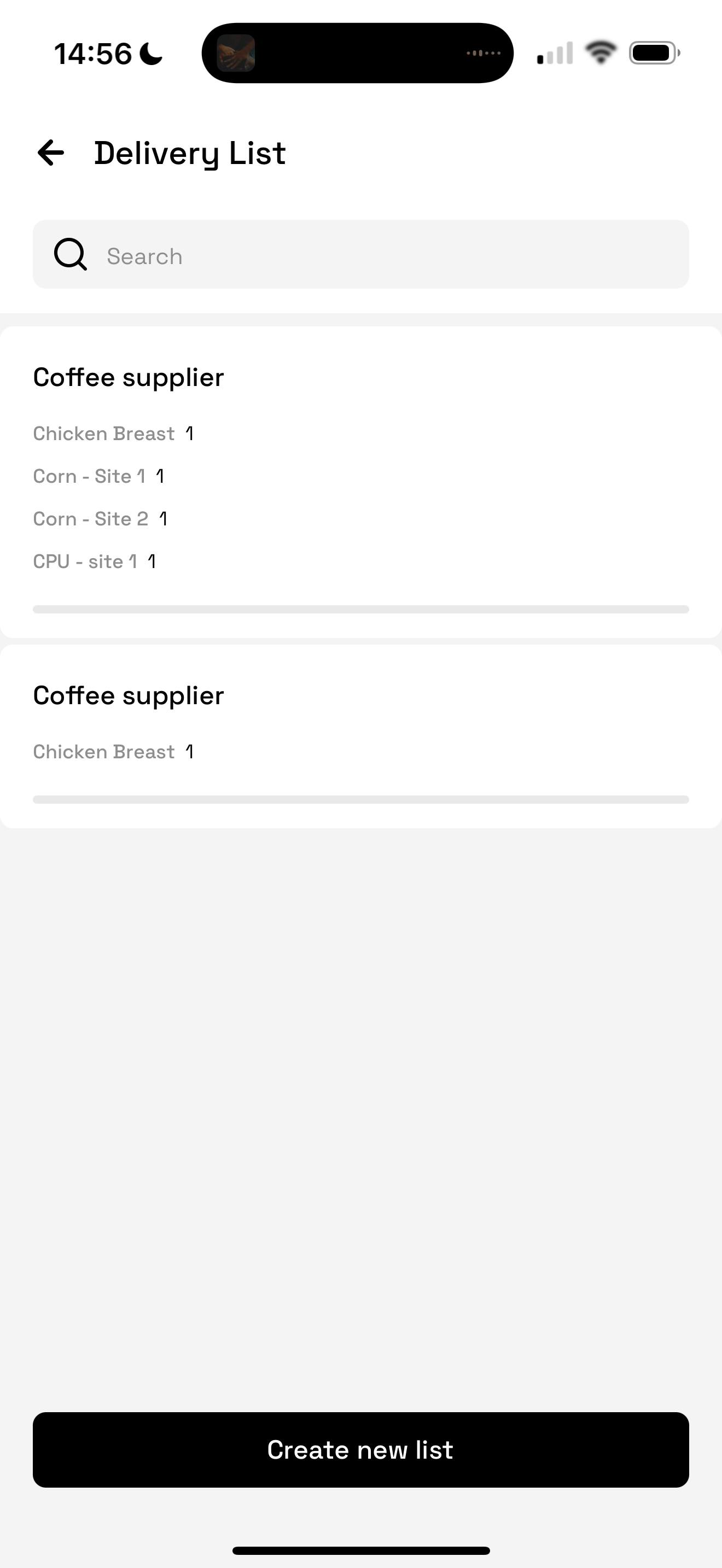
- You will now see all your preconfigured delivery lists, ready to be completed
3. Complete the Delivery Check
Select the delivery list you want to complete.
Use Accept All or Reject All - or manually select/deselect each product as needed.
Add comments if necessary.
Tap the temperature icon to record temperature readings. (All temperatures must be entered before submitting the list.)
Tap the calendar icon to add expiry dates.
Use the comment icon to add any additional notes.
When finished, choose to Save as Draft or Submit your final list.
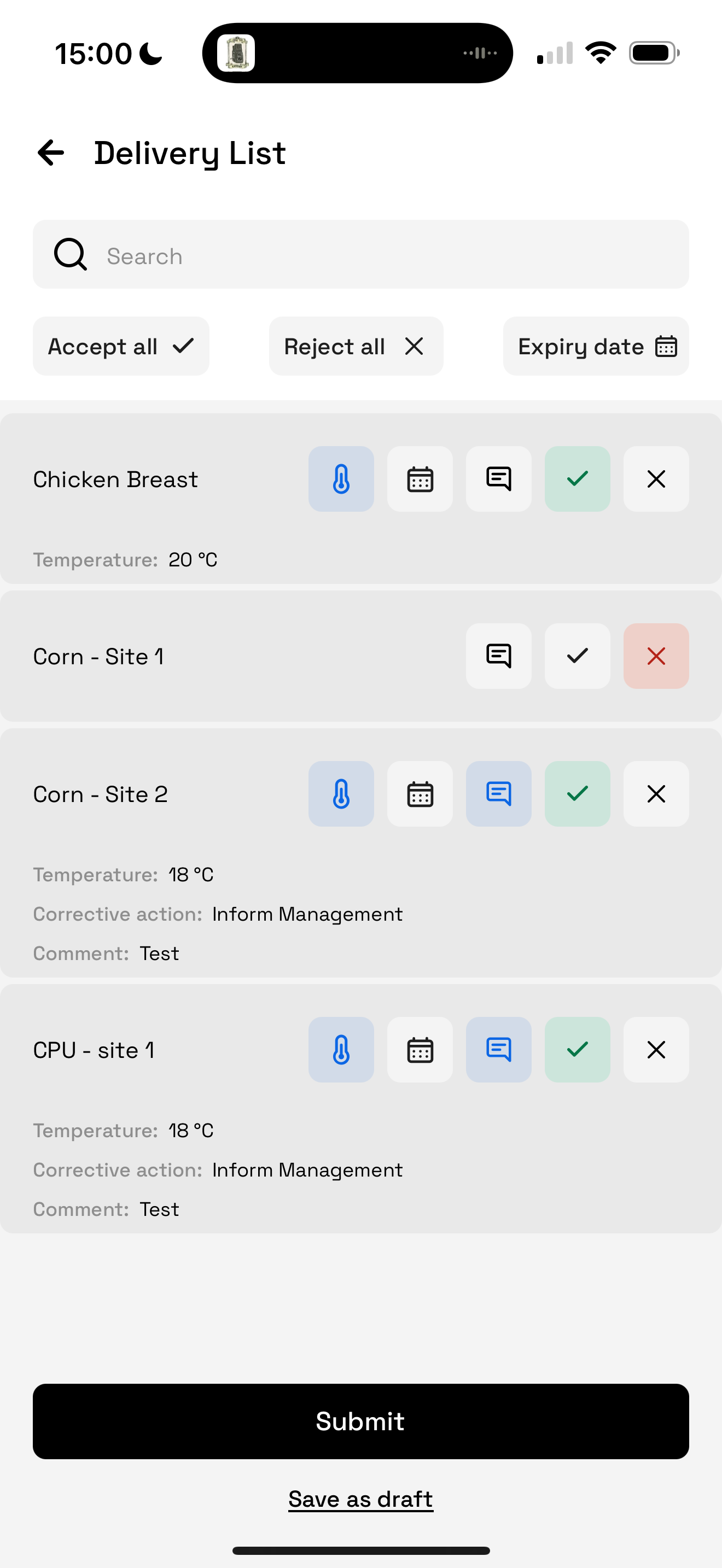
- Note - Each product will appear as an individual line item in the Log and in the Desktop Report for traceability.
Admin Note
Delivery workflows, supplier and product lists, and corrective actions can all be configured from the Telsen desktop platform.
Was this article helpful?
That’s Great!
Thank you for your feedback
Sorry! We couldn't be helpful
Thank you for your feedback
Feedback sent
We appreciate your effort and will try to fix the article