Use the Delivery Check workflow to ensure all incoming goods meet temperature and safety requirements. Follow the steps below to complete a delivery check using the Telsen mobile app.
✅ Step-by-Step Guide
1. Open the Telsen App
Launch the app and go to HACCP Workflows from the home screen.
Navigate to the ‘Delivery’ Workflow
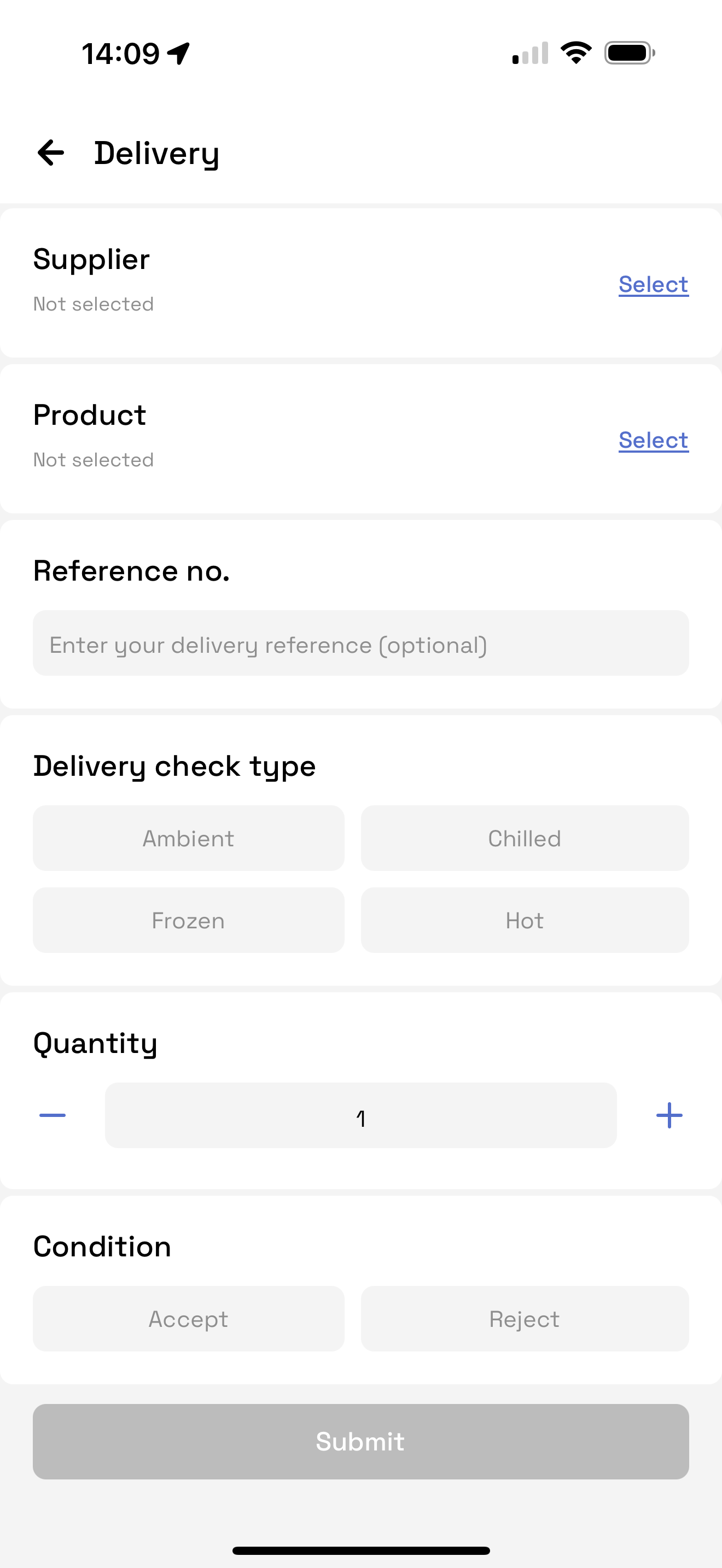
2. Enter Delivery Details
Fill in the key delivery information:
Supplier - Select from the list (suppliers are set up via the desktop platform).
Product - Choose the product being delivered (also configured on desktop).
Reference Number - Enter the delivery note or invoice reference.
Delivery Type - Select the type of delivery: Ambient, Chilled, Hot or Frozen.
Quantity Received - Record how much of the product was delivered.
Condition -either accept or reject the order
3. Record the Temperature
You will then be prompted to take a temperature reading:
If using a Telsen Bluetooth probe, the temperature will pull through automatically.
If not, enter the temperature manually
4. Select Corrective Action (If Required)
If the product does not meet the expected standards, select an appropriate corrective action from the list (e.g. reject, accept with note, escalate).
5. Submit the Workflow
Review all entered data to ensure accuracy.
Tap Submit to finalise the delivery check.
7. View the Log
Tap View Log to see a record of all delivery checks performed that day.
The report can also be found on the HACCP workflow report on desktop
Admin Note
Delivery workflows, supplier and product lists, and corrective actions can be configured from the Telsen desktop platform.
Was this article helpful?
That’s Great!
Thank you for your feedback
Sorry! We couldn't be helpful
Thank you for your feedback
Feedback sent
We appreciate your effort and will try to fix the article