Offline Mode allows you to complete your checks without an internet connection. This is useful in areas with poor connectivity or when you need to work fully offline.
Setting Up for Offline Mode
Before you can use Offline Mode, you must be online to prepare your device:
Log in to the Telsen app while connected to the internet.
Select your site from the list. This step downloads all the relevant data, including acceptable templates, for that location.
Verify templates – ensure all required templates are marked as acceptable before going offline.
Tip: We recommend trialling Offline Mode at just one site to start with.
Using Offline Mode
Once you’ve downloaded the site data, you can work fully offline:
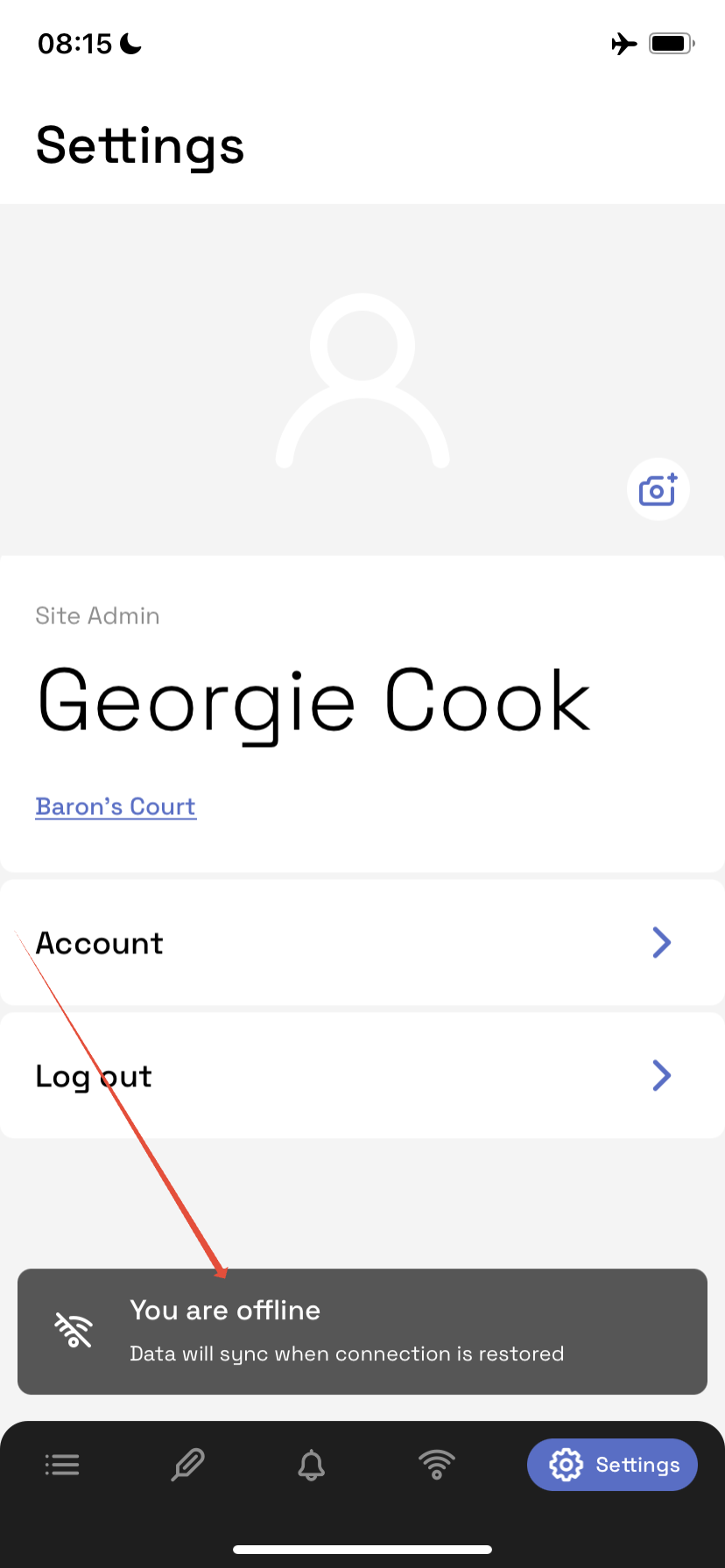
You’ll see an Offline Mode banner at the top of the app when you’re not connected to the internet.
All checks can be carried out exactly as they are online.
You can turn on Airplane Mode to see the banner and confirm you’re in Offline Mode.
The system records who completed each workflow and the time it was done.
If multiple users are completing the same workflow, the first person to submit will be recorded as the one who completed it.
Syncing Data Back Online
While offline, your checks are stored locally on your device.
Data will not be uploaded to the cloud until you’re back online.
Once your device reconnects to the internet, the Offline Data Syncing banner will appear, and syncing will complete automatically.
Key Things to Remember
You must be online to log in and select your site before going offline.
Do not force-quit or fully close the app while offline - this can clear the stored data.
All work done offline will be saved locally until your next online connection.
Always allow time for the app to finish syncing before logging out or switching devices.
Was this article helpful?
That’s Great!
Thank you for your feedback
Sorry! We couldn't be helpful
Thank you for your feedback
Feedback sent
We appreciate your effort and will try to fix the article