If your temperature probe loses connection or you need to manually record temperatures, you can switch your HACCP checks to Manual Mode. This ensures you can continue logging data accurately without interruption.
1. Default Mode Setting (Company Admins)
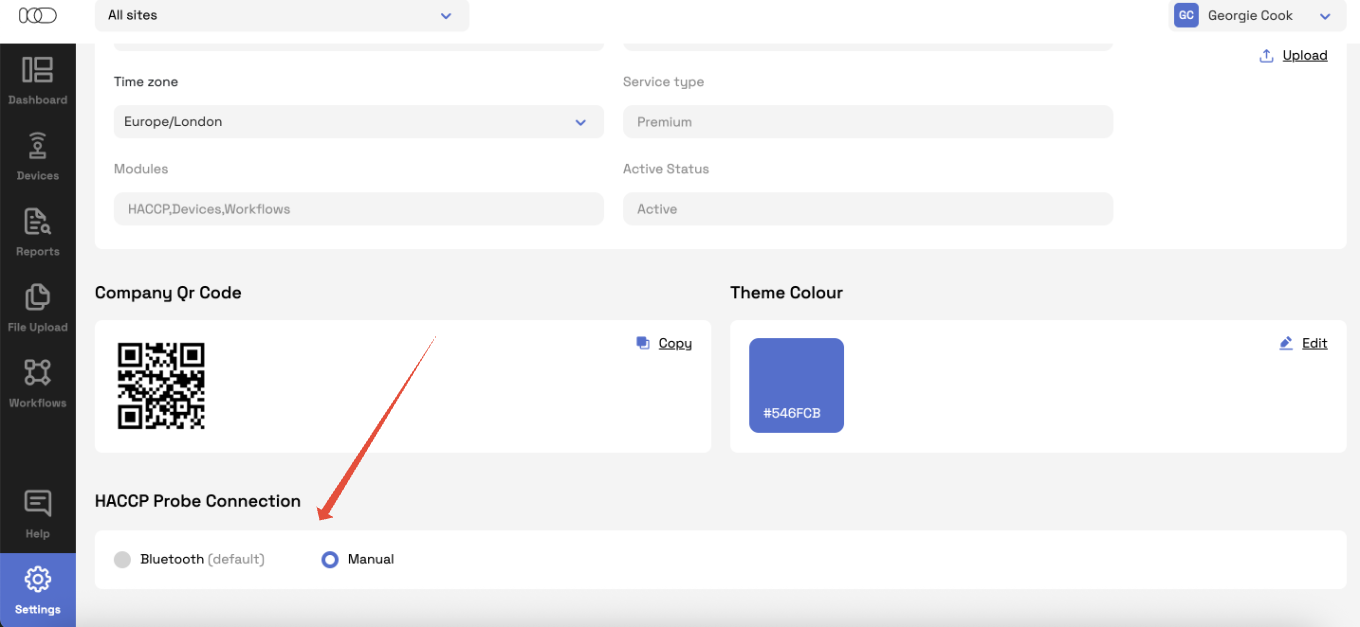
Company Admins can choose whether Manual or Probe mode is the default for all sites.
Go to the Settings tab on the desktop dashboard.
Open the Organisation section.
Under HACCP Probe Connection, select your preferred Default Mode:
Probe Mode – Temperatures are recorded automatically from connected probes.
Manual Mode – Users enter temperature readings manually.
Click Save to confirm your selection.
Tip: Setting Manual Mode as default is useful if you don’t always use connected probes, or if signal connectivity varies across sites.
2. Switching to Manual Mode on Mobile (Site Users)
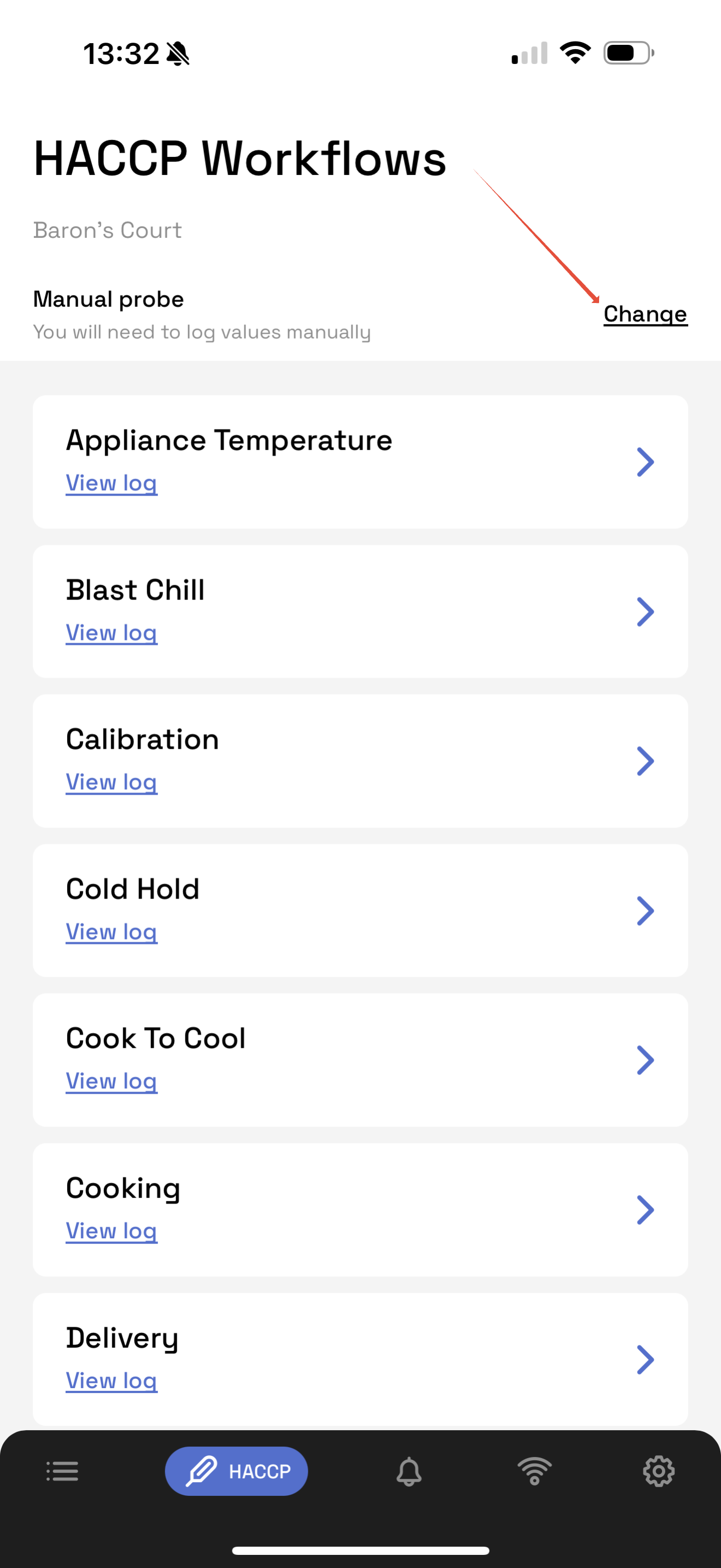
If your probe disconnects or you need to take readings manually during a HACCP check:
Open the Telsen Mobile App.
Navigate to the HACCP tab.
In the top-right corner, tap the Mode selector.
Choose Manual Mode.
You can now enter temperatures manually for each step of the workflow.
Once all readings are entered, submit your check as usual.
Note: When switching back to connected probes, make sure the device is re-paired and showing as active before starting new checks.
3. When to Use Manual Mode
Use Manual Mode if:
Your Bluetooth probe has temporarily lost connection or run out of battery.
You need to record a one-off reading without a probe.
4. Why This Matters
Switching to manual mode ensures:
No interruption in your HACCP workflow.
Continuous temperature logging, even if a probe is offline.
Complete and compliant reporting for audits and traceability.
Was this article helpful?
That’s Great!
Thank you for your feedback
Sorry! We couldn't be helpful
Thank you for your feedback
Feedback sent
We appreciate your effort and will try to fix the article